description: Set the Project Information on a SuiteMigration Project: transaction migration scope, trial balance and transaction start dates, reconciliation cutoff, dry run and go live dates, and the project manager.
Project Information
Project Information holds the dates and ownership that define how every Migration inside the Project is scoped, when it goes live, and who runs it.
Where to find Project Information
Open a Project. The Project Information card is the first card below the Project name. Click Edit in the card header to change any field, then Save.
Project Information has two subsections: Migration Timeline and Milestones.
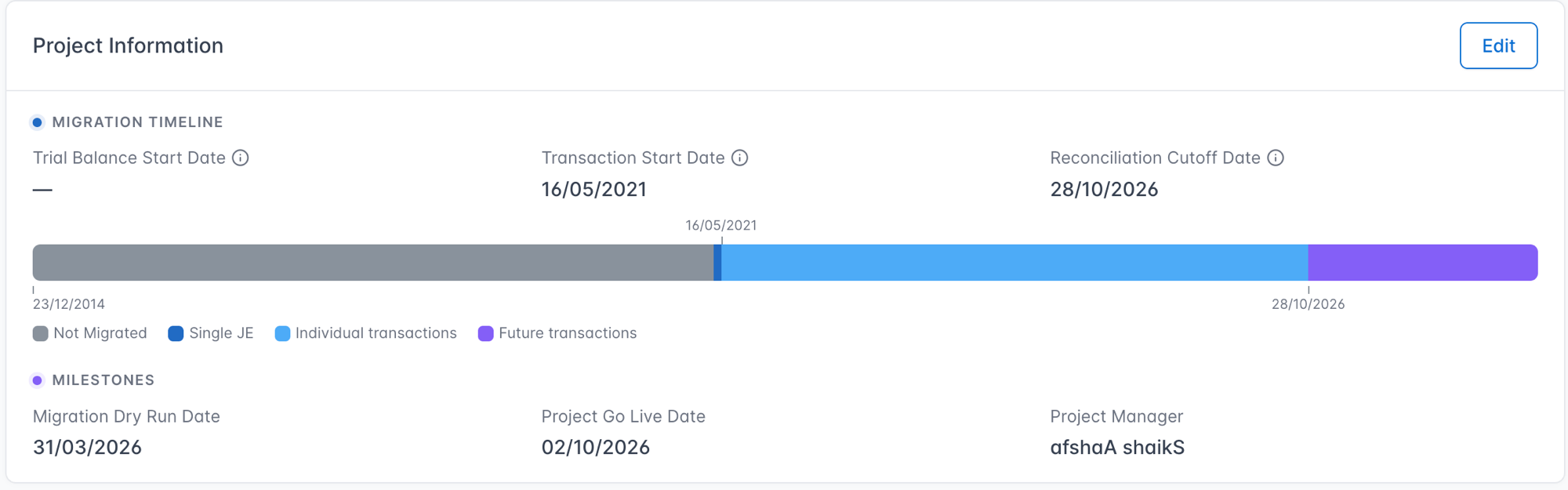
Migration Timeline
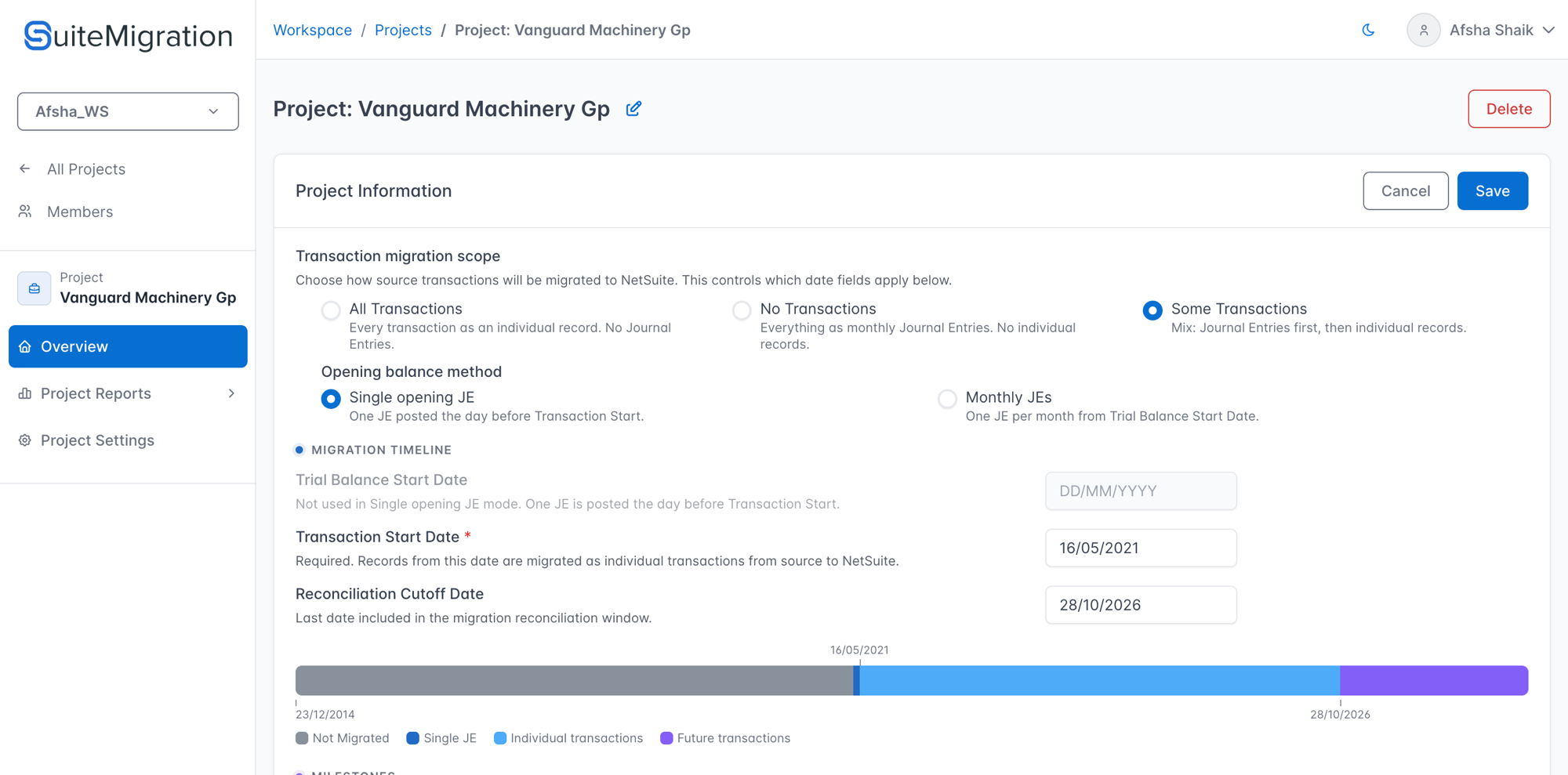
Transaction migration scope
Choose how source transactions will be migrated to NetSuite. Your choice here controls which date fields apply below.
- All Transactions: every source transaction is migrated as an individual record in NetSuite. No Journal Entries are posted.
- No Transactions: no individual transaction records are migrated. The whole source history comes across as monthly Journal Entries, from the earliest source transaction up to the Reconciliation Cutoff Date.
- Some Transactions: a mix. Journal Entries carry the history up to Transaction Start Date, and records from that date onward are migrated as individual transactions.
When you choose Some Transactions, a second choice appears: Opening balance method.
- Single opening JE: one Journal Entry is posted the day before Transaction Start Date, carrying all history in one JE.
- Monthly JEs: one Journal Entry per month, starting from Trial Balance Start Date and going up to Transaction Start Date.
Trial Balance Start Date
The date from which monthly Journal Entries begin, when you are migrating balances as JEs.
- All Transactions mode: not used. Every transaction is migrated individually.
- No Transactions mode: not used. Monthly JEs cover the full source range on their own, so there is no start date to set.
- Some Transactions + Single opening JE: not used. One JE is posted the day before Transaction Start.
- Some Transactions + Monthly JEs: required. Monthly JEs migrate from this date up to Transaction Start.
Transaction Start Date
The date from which source records are migrated as individual transactions.
- All Transactions mode: not used. The full source history is migrated as individual records.
- No Transactions mode: not used. Nothing is migrated as an individual record.
- Some Transactions mode: required. Records from this date onward are migrated as individual transactions from source to NetSuite.
Reconciliation Cutoff Date
The last date included in the migration reconciliation window. SuiteMigration's reconciliation reports compare source and destination totals up to this date.
Required fields and ordering
In Some Transactions mode, Transaction Start Date is required, and Trial Balance Start Date is required as well when the Opening balance method is Monthly JEs. Required fields are marked with a red asterisk.
The dates must also run in order: Trial Balance Start before Transaction Start, and both before the Reconciliation Cutoff Date. If something is missing or out of order, Save does nothing and the offending field shows an error.
Timeline bar
Below the date fields, SuiteMigration draws a visual timeline that runs from the earliest source transaction through the Reconciliation Cutoff Date, plus a short tail past the cutoff for future transactions.

The bar uses four colours:
- Grey (Not Migrated): source dates that fall outside the migration window you have chosen above. Transactions here stay in the source system and are not pushed to NetSuite. SuiteMigration does import historical transactions. "Not Migrated" only refers to the portion of source history that your scope settings leave out, not to historical data in general.
- Dark blue: balances carried as Journal Entries. Either a Trial Balance (monthly JEs) band across a range, or a thin Single JE marker on one day.
- Light blue (Individual transactions): the window migrated as individual records. Historical transactions dated inside this window are imported here.
- Purple (Future transactions): anything after the Reconciliation Cutoff Date.
Which bands actually appear depends on your Transaction migration scope:
| Scope | Bands on the bar, left to right |
|---|---|
| All Transactions | Light blue from the earliest source transaction to the Reconciliation Cutoff Date, then purple. No grey band. |
| No Transactions | Dark blue (Monthly JEs) from the earliest source transaction to the Reconciliation Cutoff Date, then purple. |
| Some Transactions + Single opening JE | Grey from the earliest source transaction to Transaction Start, a thin dark blue Single JE marker on the day before Transaction Start, light blue from Transaction Start to the Reconciliation Cutoff Date, then purple. |
| Some Transactions + Monthly JEs | Grey from the earliest source transaction to Trial Balance Start, dark blue (Trial Balance, monthly JEs) from Trial Balance Start to Transaction Start, light blue from Transaction Start to the Reconciliation Cutoff Date, then purple. |
Date fields that do not apply to the current scope are greyed out in the form and left off the bar.
Milestones

Migration Dry Run Date
Target date for a practice migration run. A dry run happens before Go Live so you can catch issues safely without affecting production data.
Project Go Live Date
Target date for the real production cutover to NetSuite. This is the date the client stops entering data in the source and starts in NetSuite.
Project Manager
The workspace member accountable for this Project. The dropdown lists every member of your Workspace. Pick one, or leave blank if ownership has not been assigned yet.
Saving changes
Click Edit in the Project Information header to enter edit mode. Click Save to persist your changes, or Cancel to discard them. Save stays available the whole time you are in edit mode and only greys out while a save is in flight.
Related
- Project Settings: concurrency, batch size, NetSuite custom fields, default A/R account
- Migration Settings: tax schedule, COGS account, document number overrides, and more