Connect, Sync, and Reconnect QuickBooks Online
Connecting QuickBooks Online (QBO) as a source is a four-step process:
- Connect QBO from the migration's Source card and authorize access.
- Initial sync runs automatically and pulls your QBO data into SuiteMigration.
- Resync whenever you need SuiteMigration to reflect changes made in QBO after the last pull.
- Reconnect when QBO authorization expires or is revoked.
The screens and copy below are for QBO.
Step 1: Connect QuickBooks Online
- In SuiteMigration, open your migration.
-
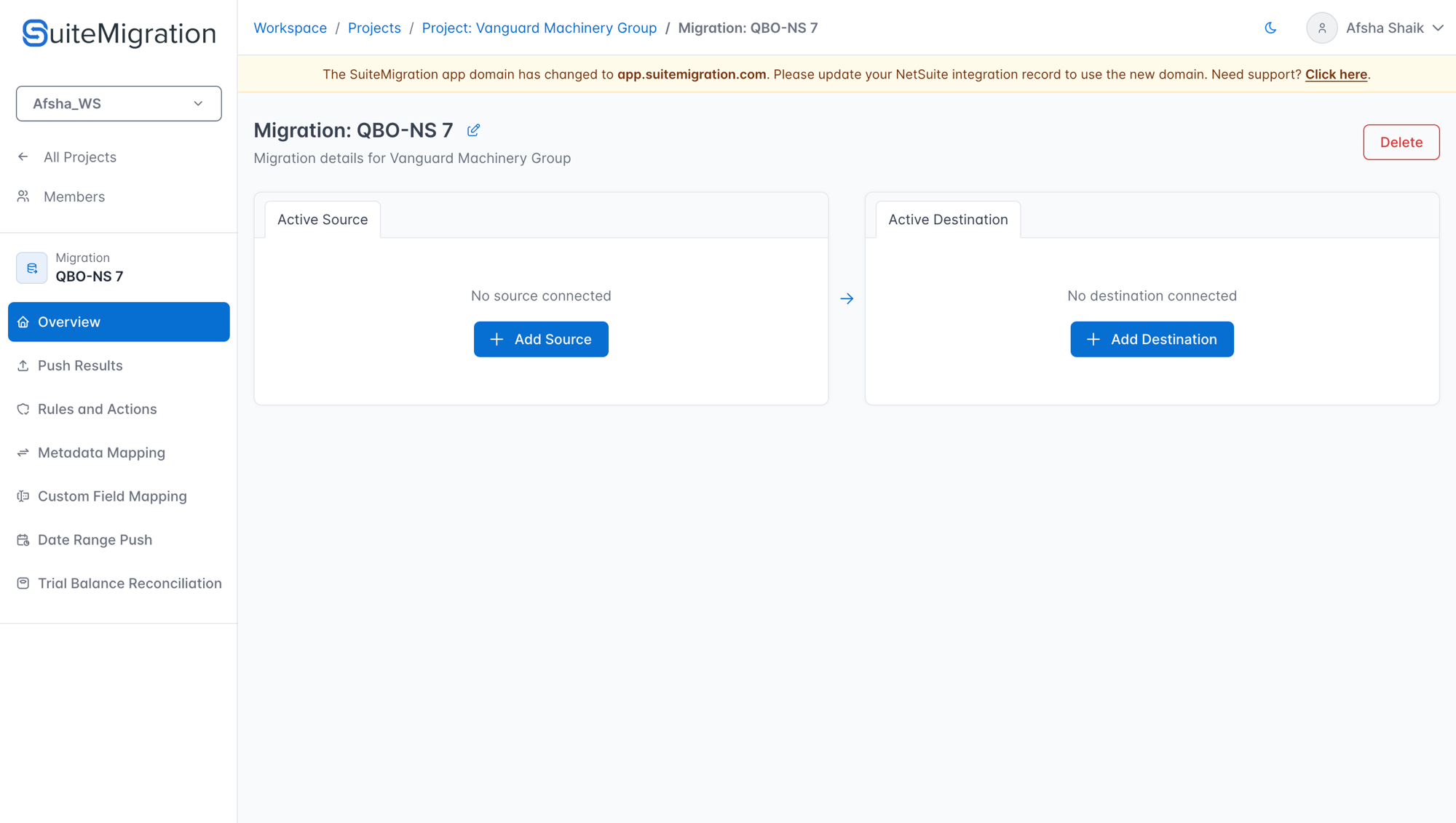
On the Source card, click Add Source.
-
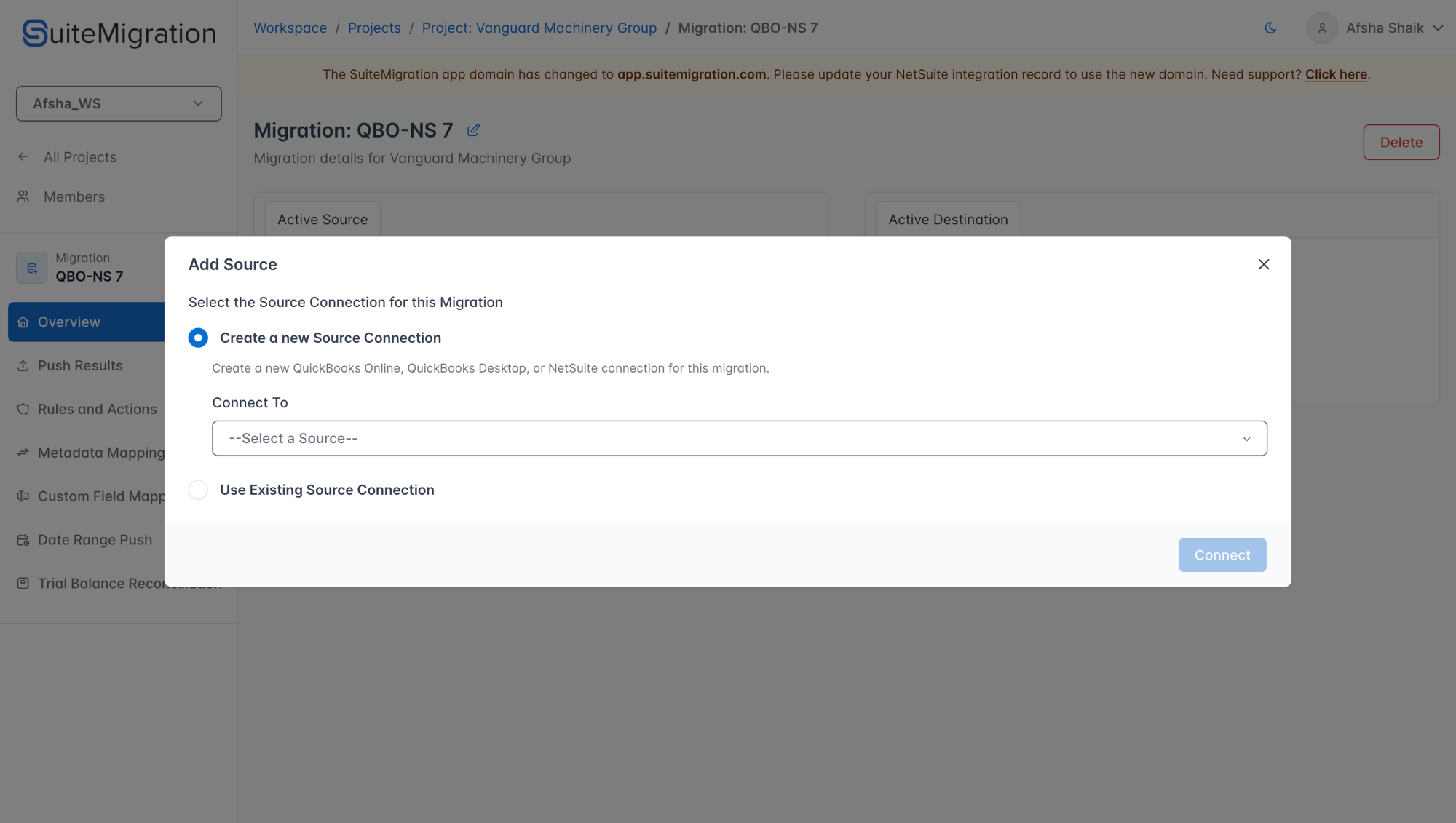
The Add Source modal opens. Select Create a new Source Connection, then open the Connect To dropdown.
The dropdown lists all available source types.
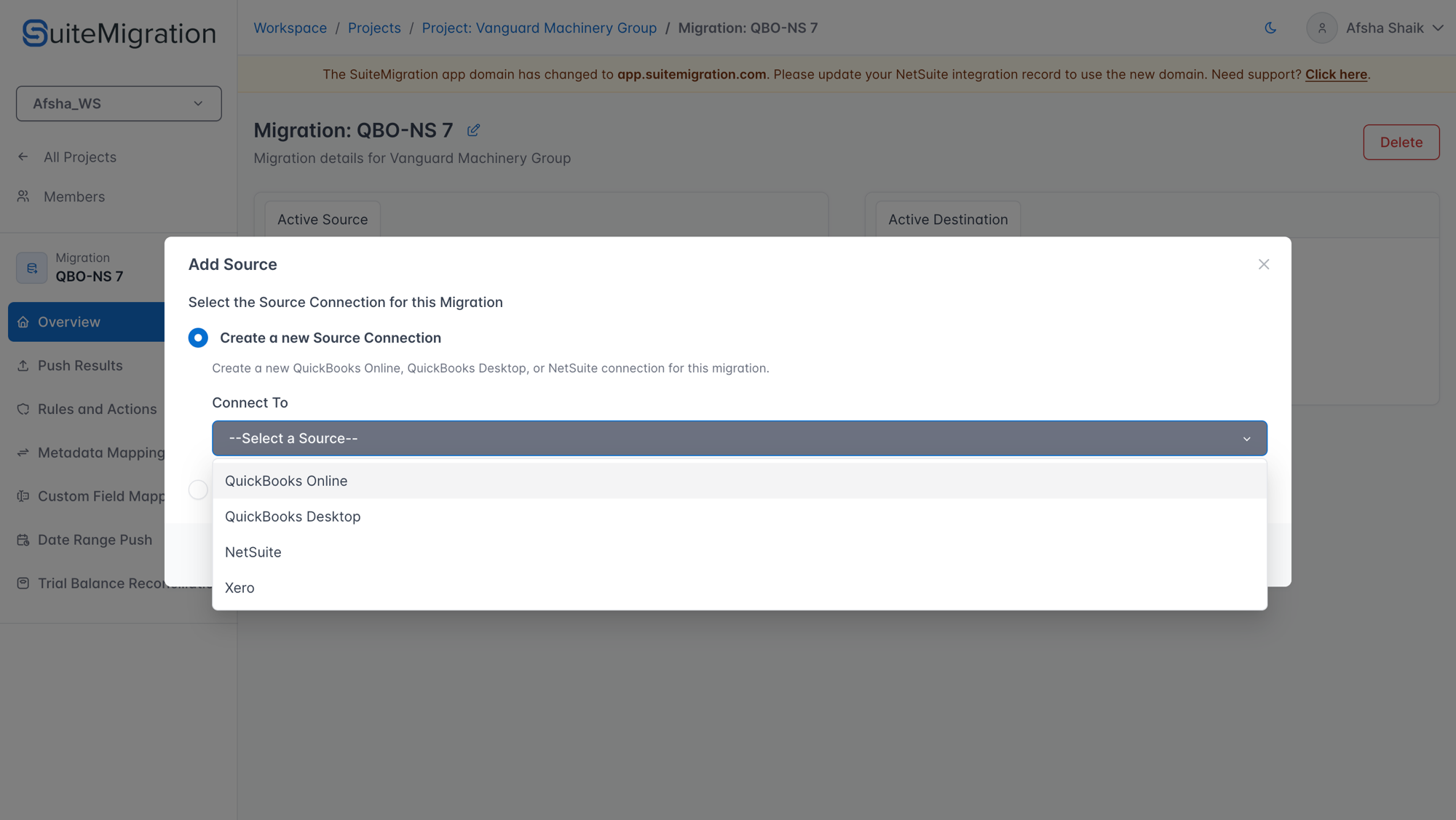
Select QuickBooks Online.
-
If you already have QBO connections in this workspace, you can also select Use Existing Source Connection to reuse one you have already authorized instead of creating a new one.
-
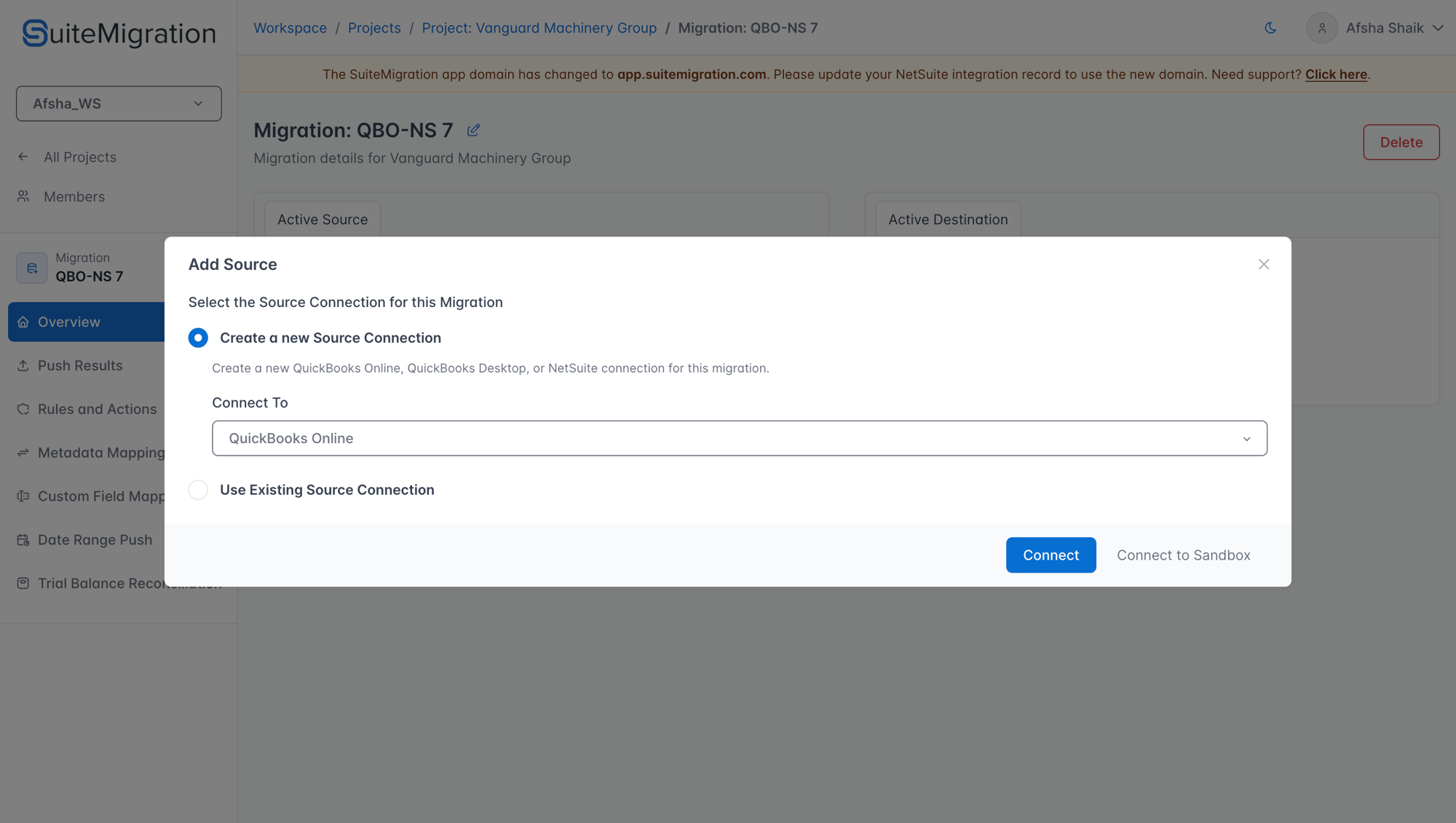
Choose the environment:
- Click Connect to authorize a Production QBO company.
- Click Connect to Sandbox to authorize a Sandbox company.
-
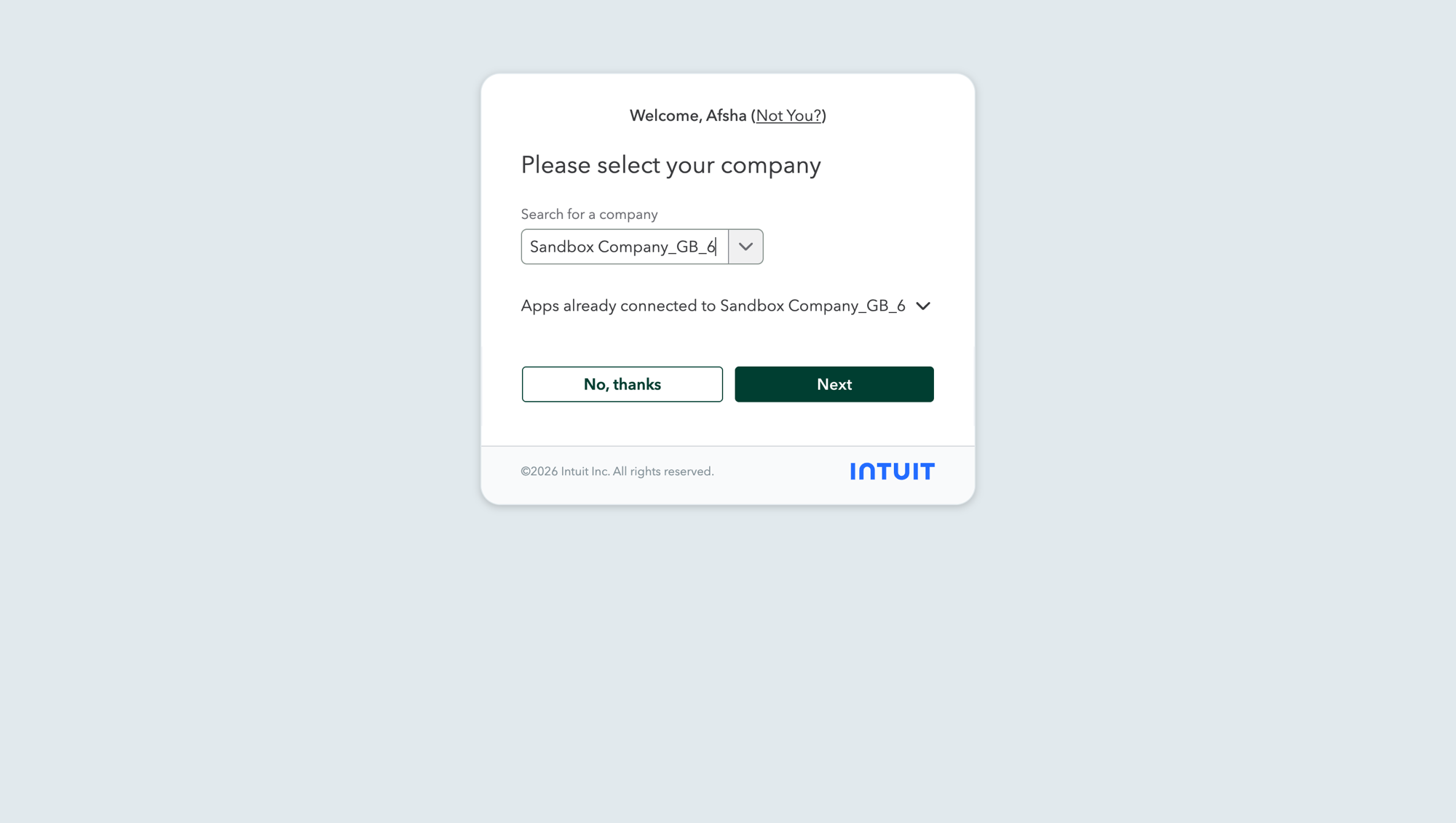
SuiteMigration redirects you to Intuit's authorization page. Select the QBO company you want to connect, then click Next and complete the authorization.
-
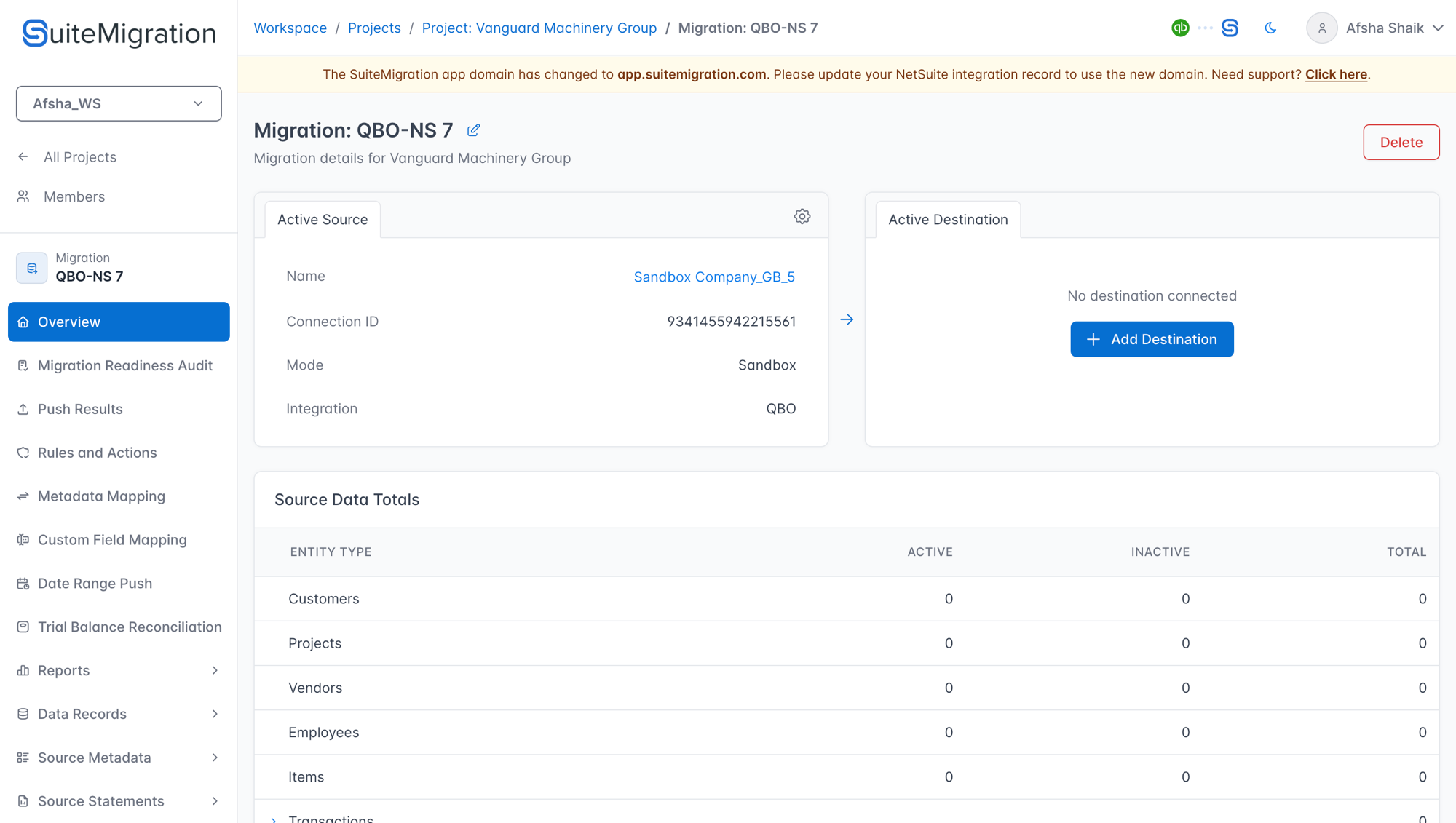
You are redirected back to SuiteMigration. The Active Source card now shows the connected QBO company name, Connection ID, Mode, and Integration type.
Step 2: Initial sync
The moment QBO is connected, SuiteMigration starts pulling data from that company. You do not need to click anything to start it.
To follow progress, click the connection name on the Active Source card to open the connection detail page.
- The connection detail page shows an Importing Data... progress bar with a percentage and the current object being imported (for example,
Current object: Vendor). -
The top navigation shows a Data Sync Status indicator, which you can click to see all in-progress operations across the workspace.
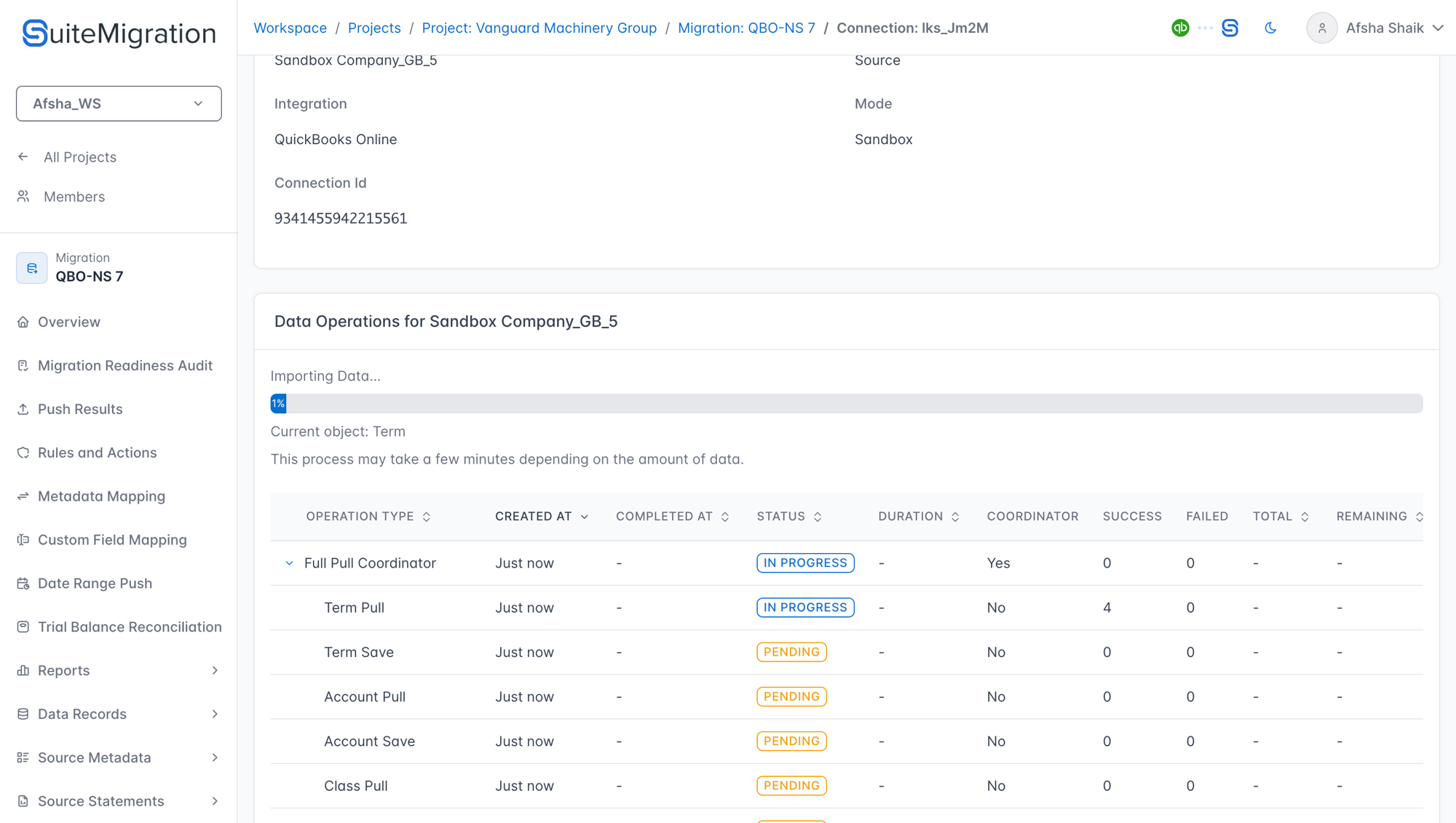
When the pull finishes, the progress bar is replaced by Sync completed, and the imported data is available in the migration's record pages, reports, and mapping screens.
Initial sync duration depends on how much data lives in the QBO company. A small company may finish in a few minutes; larger books can take longer.
Step 3: Resync
Run a resync when the QBO company has changed since the last pull and you want SuiteMigration to reflect those changes. Typical reasons:
- You edited or added transactions, customers, vendors, or items in QBO after the initial sync.
- You changed chart of accounts, tax settings, or other master data.
To run a resync:
- In SuiteMigration, open your migration (for example, Projects > Your Project > Your Migration). On the Active Source card, click the connection name to open the connection detail page.
-
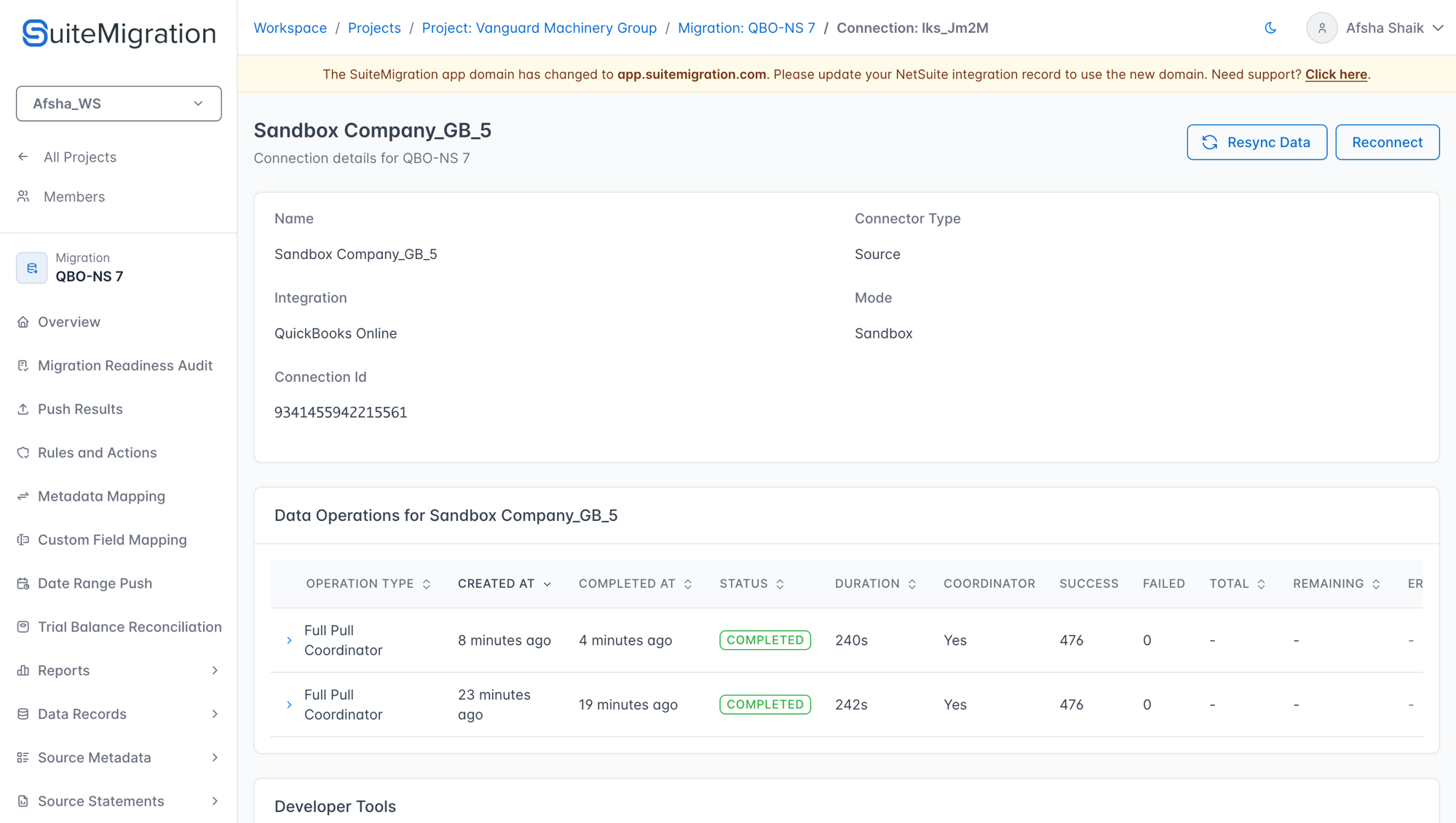
On the connection detail page, click Resync Data in the top-right.
-
The button switches to Syncing... while the pull runs, and the Importing Data... progress bar reappears.
A resync pulls a fresh copy of every supported record type from QBO. It does not delete anything that was already pushed to the destination; it only updates SuiteMigration's view of the source.
Step 4: Reconnect
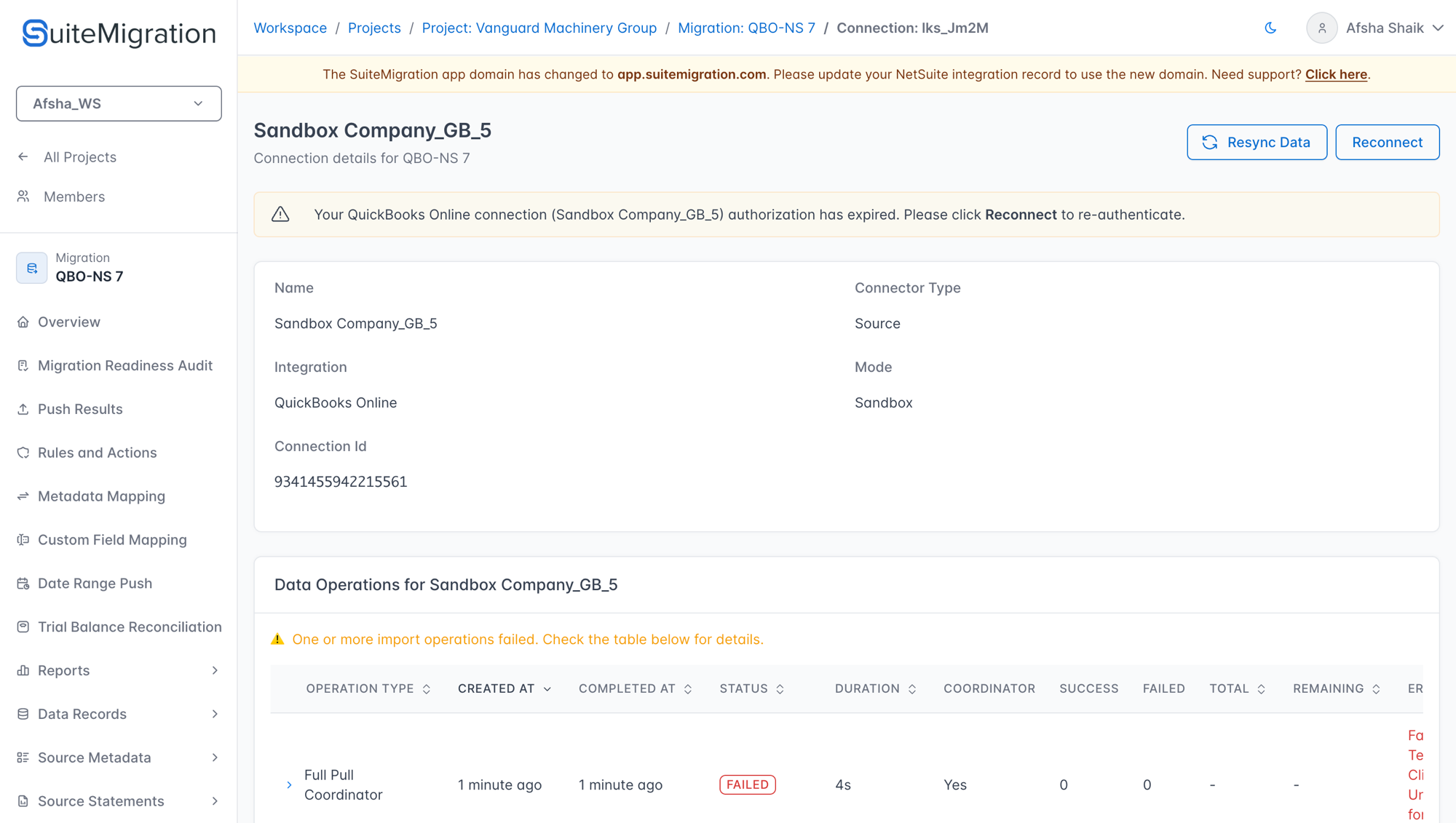
QuickBooks Online's authorization can expire or be revoked. When that happens, SuiteMigration cannot pull new data from QBO until you reauthorize.
You will see a warning banner on the QBO connection detail page:
Your QuickBooks Online connection ([company name]) authorization has expired. Please click Reconnect to re-authenticate.
To reconnect:
- Click Reconnect in the banner or in the connection detail page header.
-
SuiteMigration sends you to Intuit's sign-in page. Sign in as a user that has access to the same QBO company that was originally connected.
Important: You must authorize the exact same QBO company that was originally connected. If you pick a different one, SuiteMigration will show: "Reconnect rejected: you authorized a different QuickBooks company than the one originally connected. Please reconnect with the same company."
-
Click Connect on the authorization screen.
- You are returned to the migration overview and a resync starts automatically.
Sync status indicators
There are four places to check sync status:
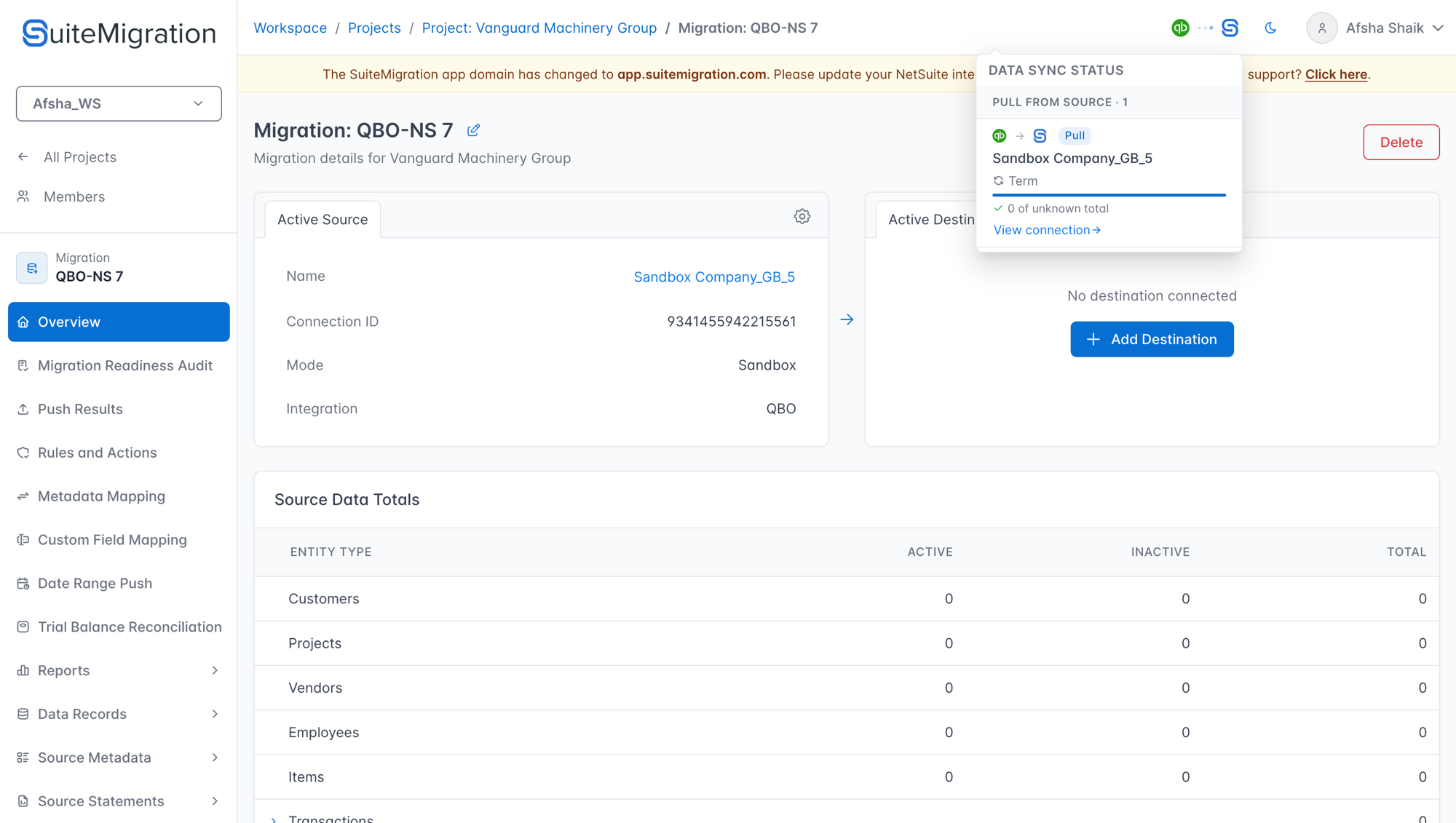
1. Top navigation: Data Sync Status
Whenever a pull or push is running anywhere in the workspace, the top nav shows an animated indicator between the source and destination logos. Click it to open the Data Sync Status dropdown, which lists every in-progress operation with a Pull or Push badge and a View connection link.
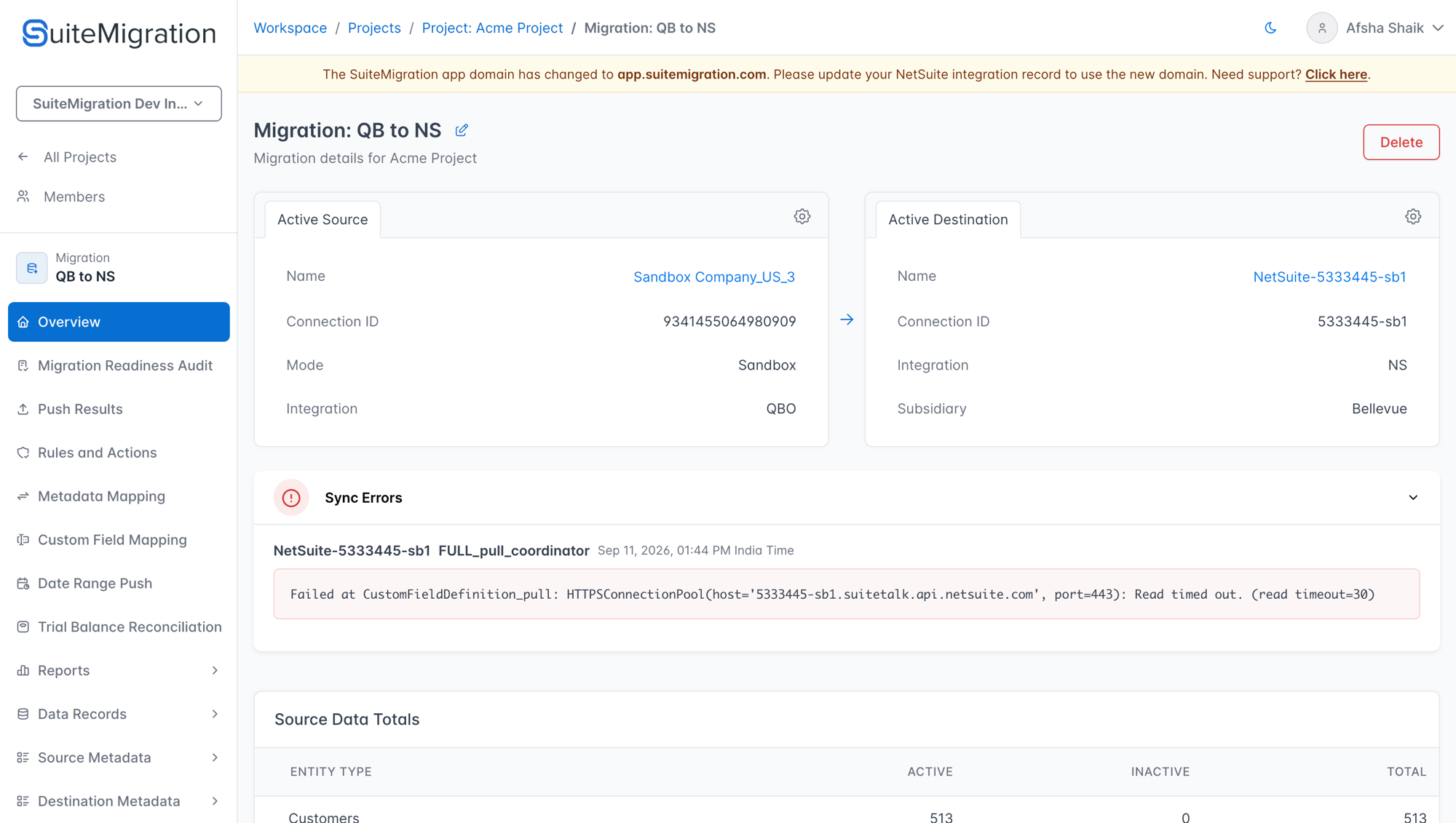
2. Migration overview: Sync Errors
If any operation fails during a pull, a Sync Errors panel appears on the migration overview between the source/destination cards and the Source Data Totals table. Each entry shows the connection name, operation type, timestamp, and the error message.
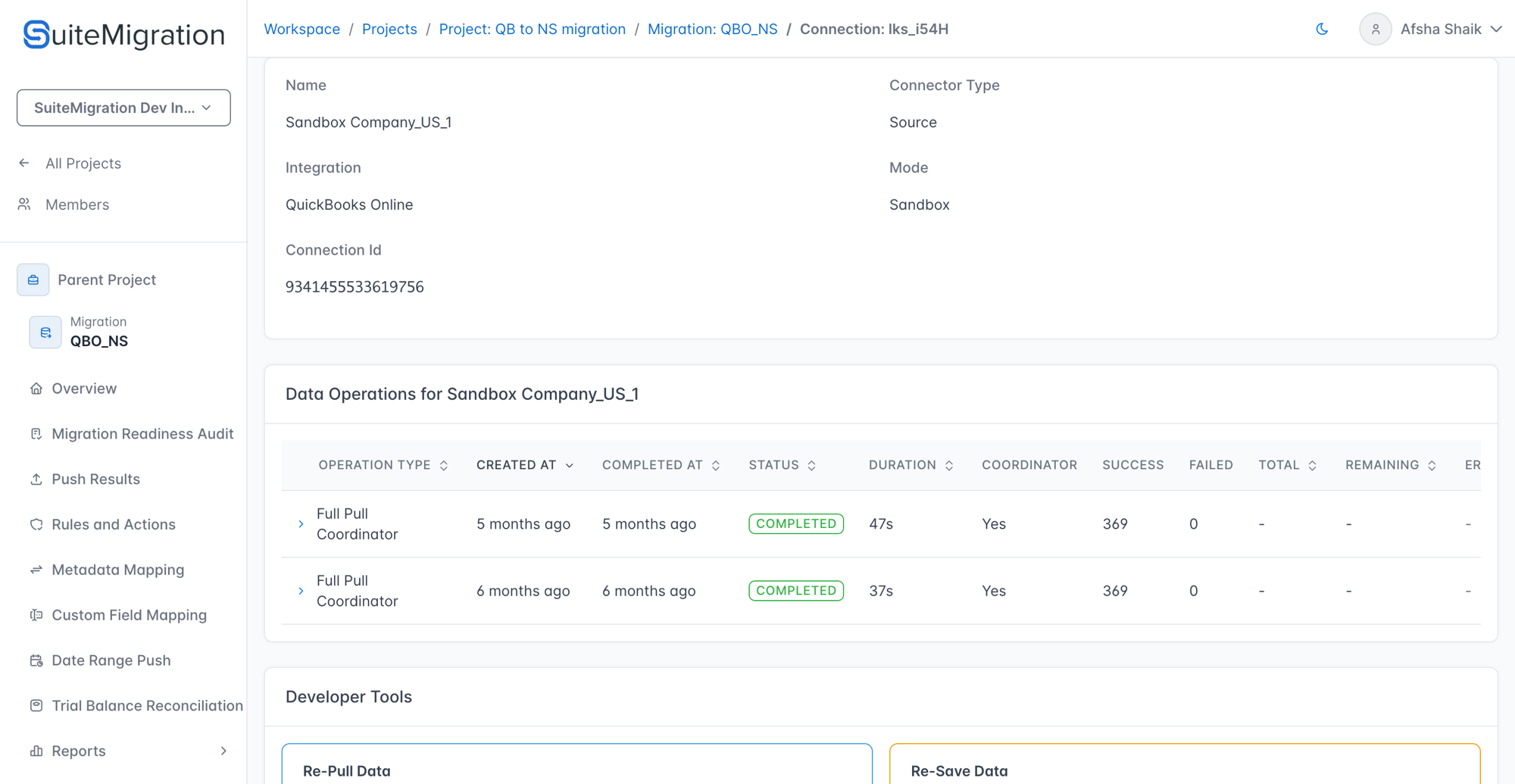
3. Connection detail page
Each source connection page shows its own progress bar during an active pull, plus a full history of past operations in the Data Operations table below. Operation status badges:
| Badge | Meaning |
|---|---|
in_progress |
Currently running. |
completed |
Finished without any errors. |
completed_with_errors |
Finished, but some records failed. Check the Sync Errors section. |
failed |
Operation did not complete. |
pending |
Queued, not started yet. |
skipped |
Did not run because an earlier step in the same sync failed. Fix the failure and run Resync Data. |
canceled |
The operation was stopped before it finished. |
4. Source Updated badge
On record pages that have been pushed to the destination, a small history icon appears next to the record if the source has changed since that push. Hover the icon to see Source data has changed since last push. This means the latest source values are already in SuiteMigration; re-push the record to send the updated data to the destination.

Troubleshooting
Intuit sign-in loop or "unable to connect" after clicking Connect. Third-party cookies or a strict tracking-protection extension can block the OAuth handshake. Try the connect flow in a fresh browser window with extensions disabled, or in a different browser.
Wrong QBO company connected. If you authorized the wrong company by mistake, open the connection detail page from the Active Source card, then use the Remove option to delete the connection. Click Add Source to start again and select the correct company at Intuit's company-picker step.
"Reconnect rejected: you authorized a different QuickBooks company than the one originally connected." You signed in to Intuit with an account that authorized a different QBO company. Click Reconnect again and make sure you select the same company that was originally connected.
"Your QuickBooks Online connection authorization has expired" keeps returning. This usually means the QBO admin revoked SuiteMigration's access, or the Intuit user you reconnected with no longer has access to that company. Sign in to QBO, go to Apps → My Apps, confirm SuiteMigration is listed and connected, and then click Reconnect in SuiteMigration.
Initial sync stuck on the same object for a long time. Some object types (long transaction history, large journal entries) take several minutes. If the progress has not moved for more than 30 minutes, capture a screenshot of the connection detail page and contact support.
One or more import operations failed. Open the Sync Errors panel on the migration overview (it appears automatically when there are failures), or expand the failed row in the Data Operations table on the connection detail page. Each error entry includes the connection name, operation type, timestamp, and the error message. If the error is not self-explanatory, contact support.