Re-syncing Data and Pulling Statements from NetSuite
SuiteMigration caches data from your connected NetSuite account to power its mapping tables, validation rules, and reconciliation reports. Two operations let you refresh that data:
| Operation | What it refreshes | Where to trigger it |
|---|---|---|
| Resync Data | Records, metadata, and statements for a connection | Connection detail page |
| Resync Statements | Statements only (Trial Balance, P&L, Balance Sheet, Cash Flow) | Destination Statements → Trial Balances |
Re-syncing a connection
Run Resync Data after making changes in NetSuite that SuiteMigration needs to pick up:
- You added or changed accounts, tax codes, classes, or other metadata in NetSuite after the initial connection.
- Records are missing from a mapping table (for example, a tax code visible in NetSuite is not appearing in SuiteMigration's Tax Codes tab).
- You fixed an authentication error and want to confirm the connection is healthy.
- You enabled SuiteTax and need SuiteMigration to pick up the new tax types (see Set Up SuiteTax in NetSuite).
If you added or changed subsidiaries in NetSuite, a resync will not surface the change. The subsidiary is fixed when the connection is created. To use a different subsidiary, reconnect the connection.
To trigger a resync:
- In SuiteMigration, open your migration.
- On the migration overview page, find the Destination Connection card.
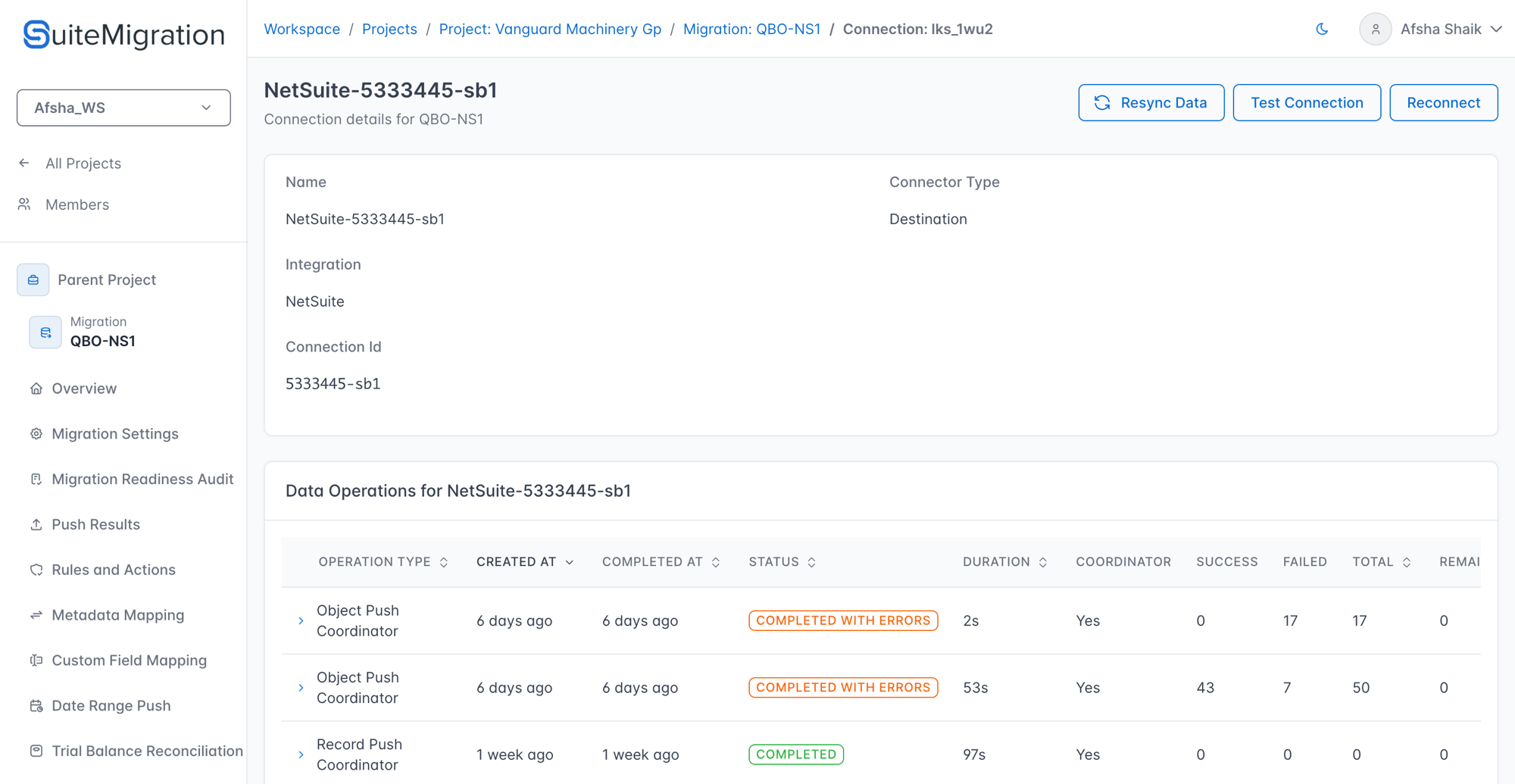
- Click the company name of your NetSuite connection to open the connection detail page.
-
Click Resync Data.
-
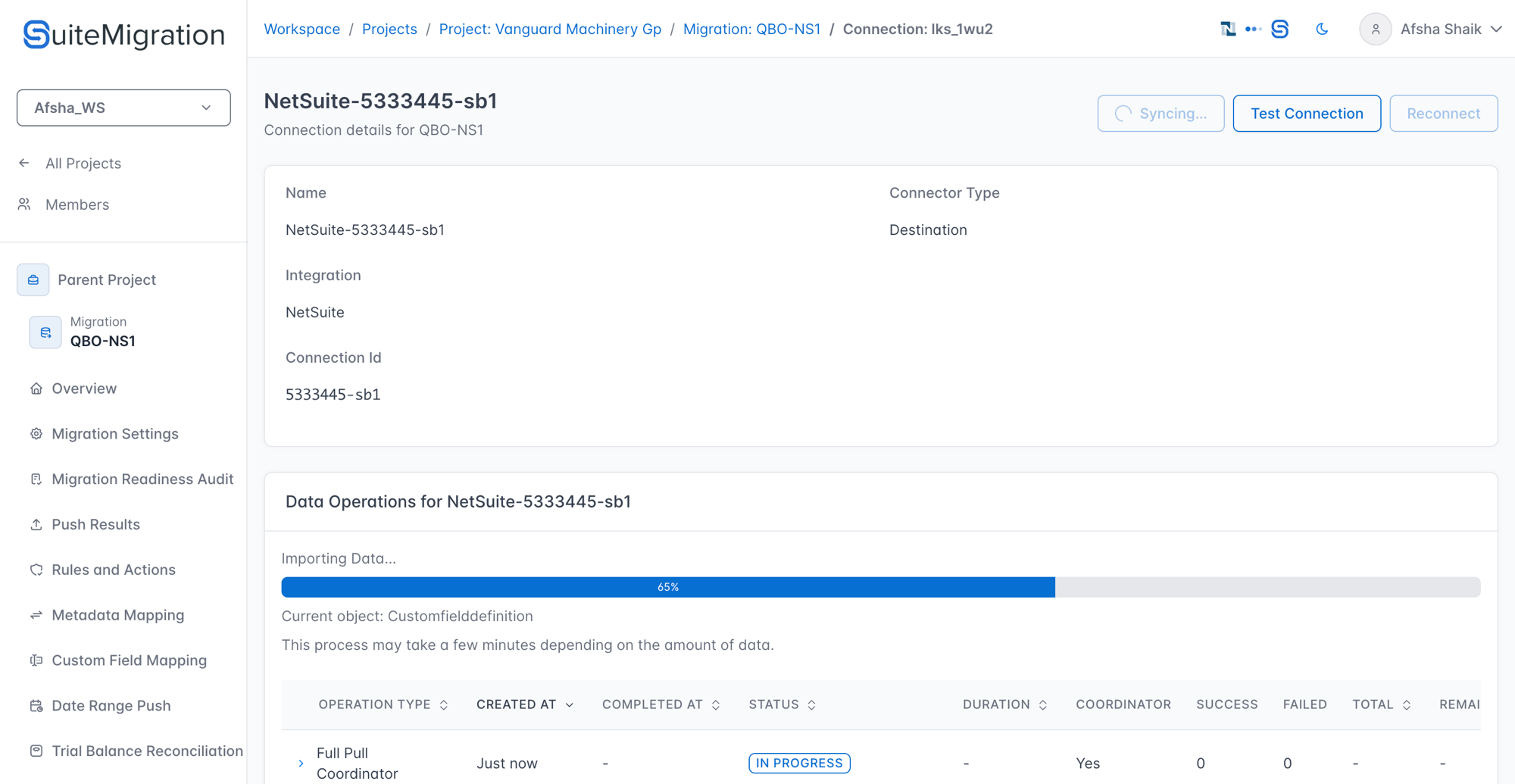
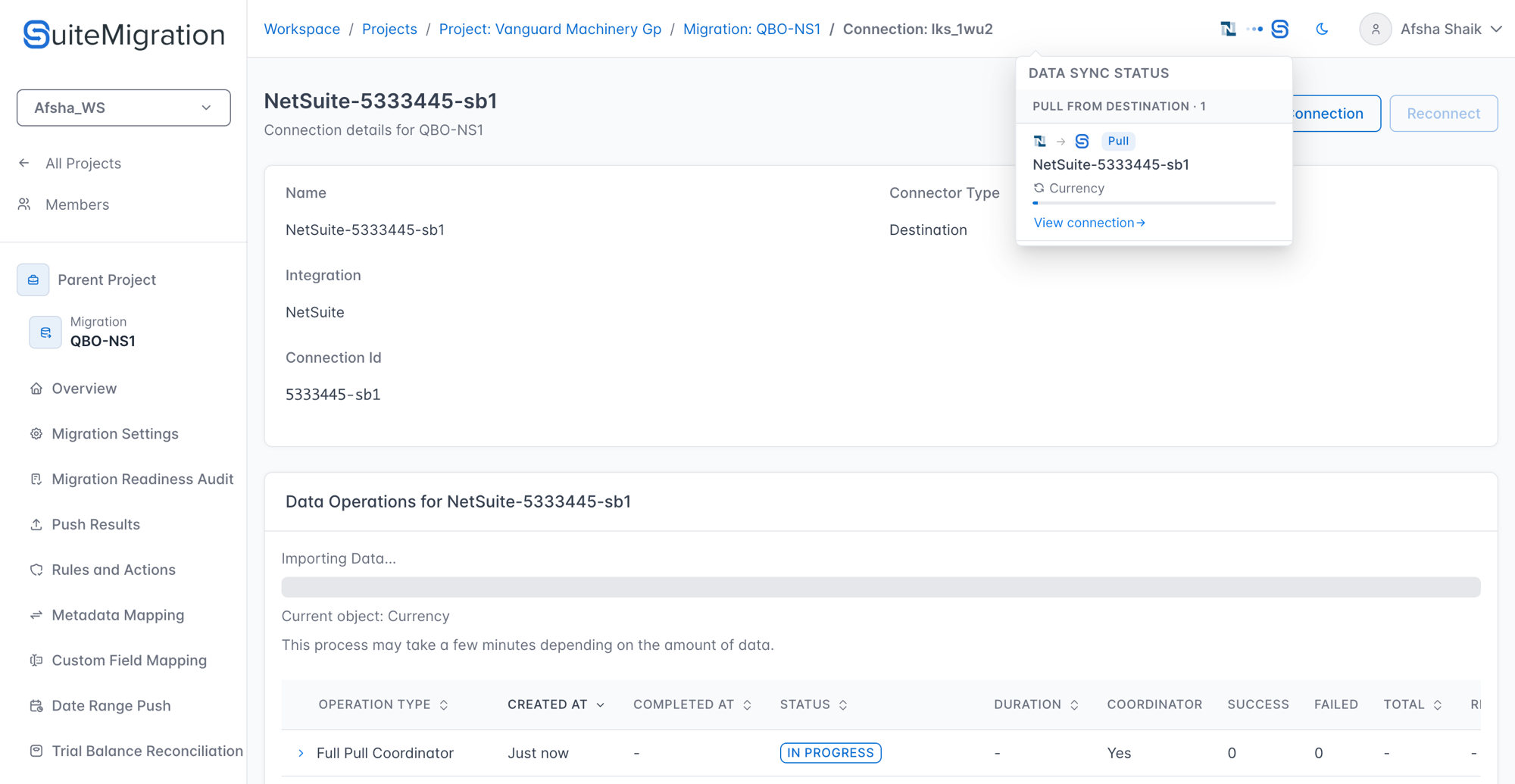
The button changes to Syncing... and a progress bar appears showing the current object being pulled and overall percentage. The Data Operations table below updates in real time.
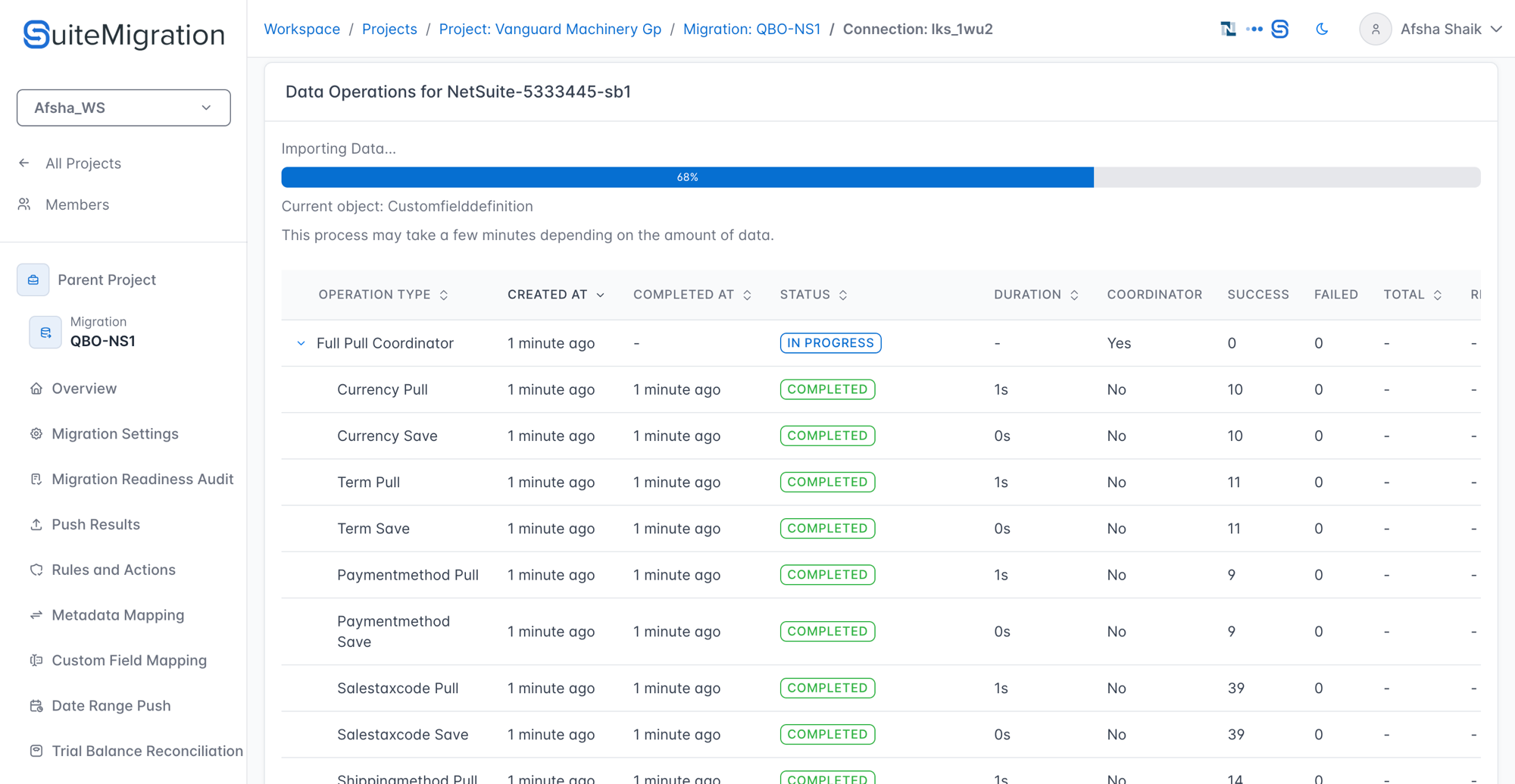
Expanding the coordinator row shows each individual object type being pulled and saved.
The sync runs in the background. You can navigate away while it is in progress. The Data Sync indicator in the top navigation bar shows that a sync is active.
What a re-sync refreshes
A destination re-sync pulls:
- Metadata: Accounts, Currency, Terms, Payment Methods, Shipping Methods, Tax Codes, Customer Categories, Classes, Departments, Locations
- Custom fields
- Statements: Trial Balance, P&L, Balance Sheet, Cash Flow
It does not pull contacts, transactions, or items.
Pulling statements
Resync Data includes statements as part of its full pull. If you only want to refresh statement figures after a push, use the dedicated statement resync button instead. It re-pulls Trial Balance, P&L, Balance Sheet, and Cash Flow without pulling records or metadata, so it completes much faster.
- In SuiteMigration, open your migration.
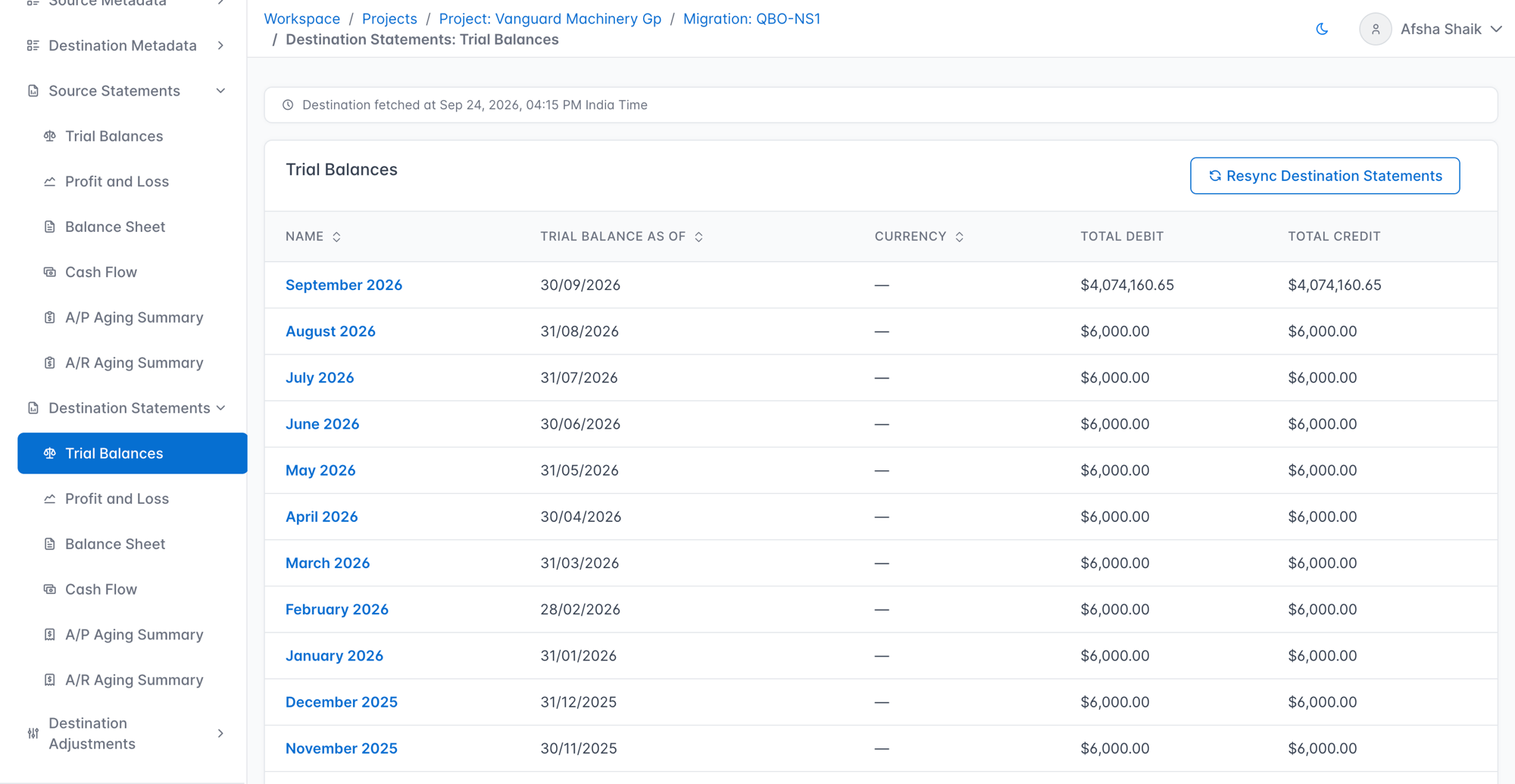
- In the left nav, go to Destination Statements → Trial Balances.
-
Click Resync Destination Statements.
-
The button changes to Resyncing... while the pull is running.
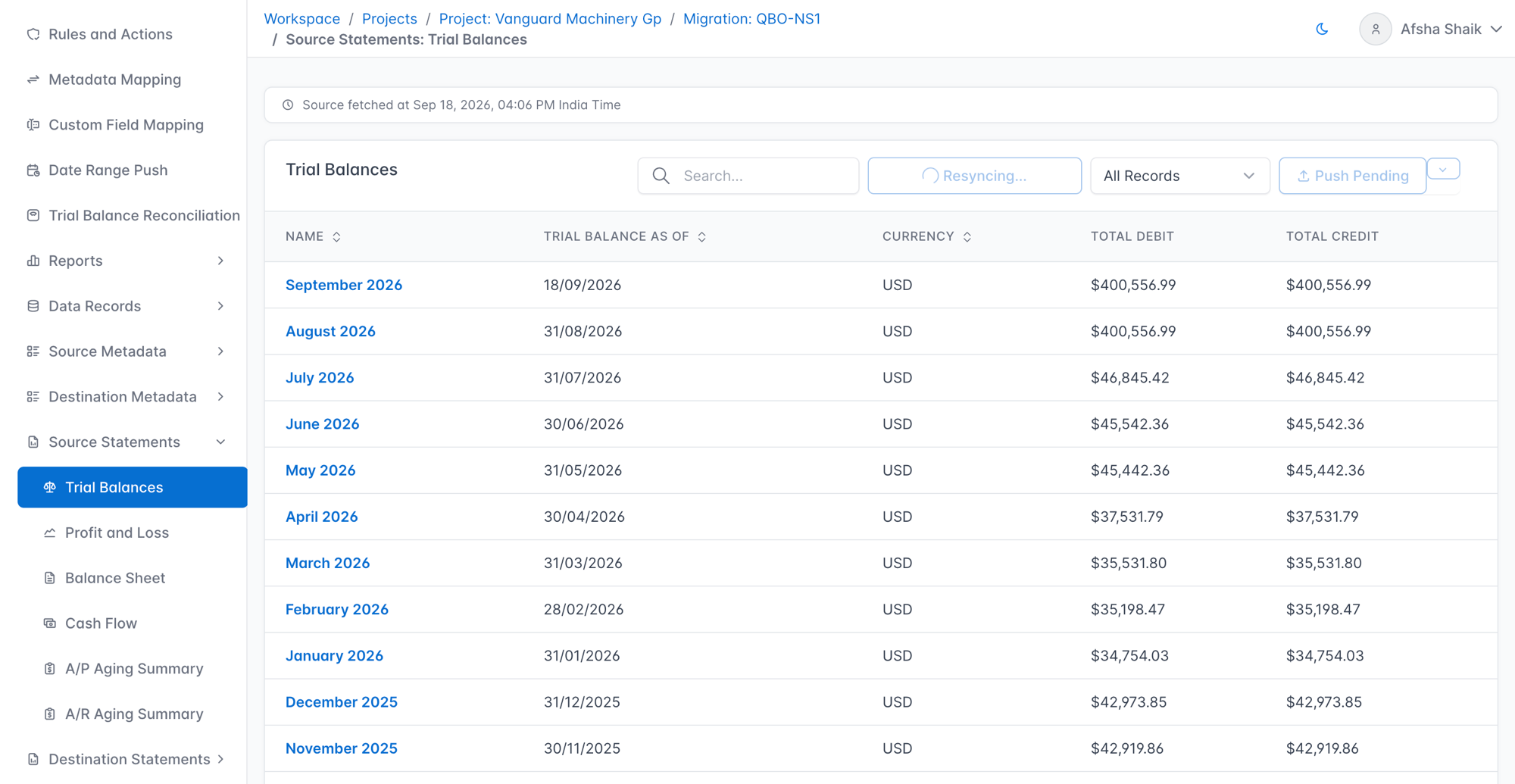
All four statement types update together. Once the resync finishes, the statement table refreshes automatically.
Monitoring sync progress
The connection detail page is the most detailed view. While a sync is running, a progress bar shows the current percentage. The Data Operations table records every pull job, its status, and the number of records processed. Click the arrow on a coordinator row to expand it and see each individual object type pulled and saved.
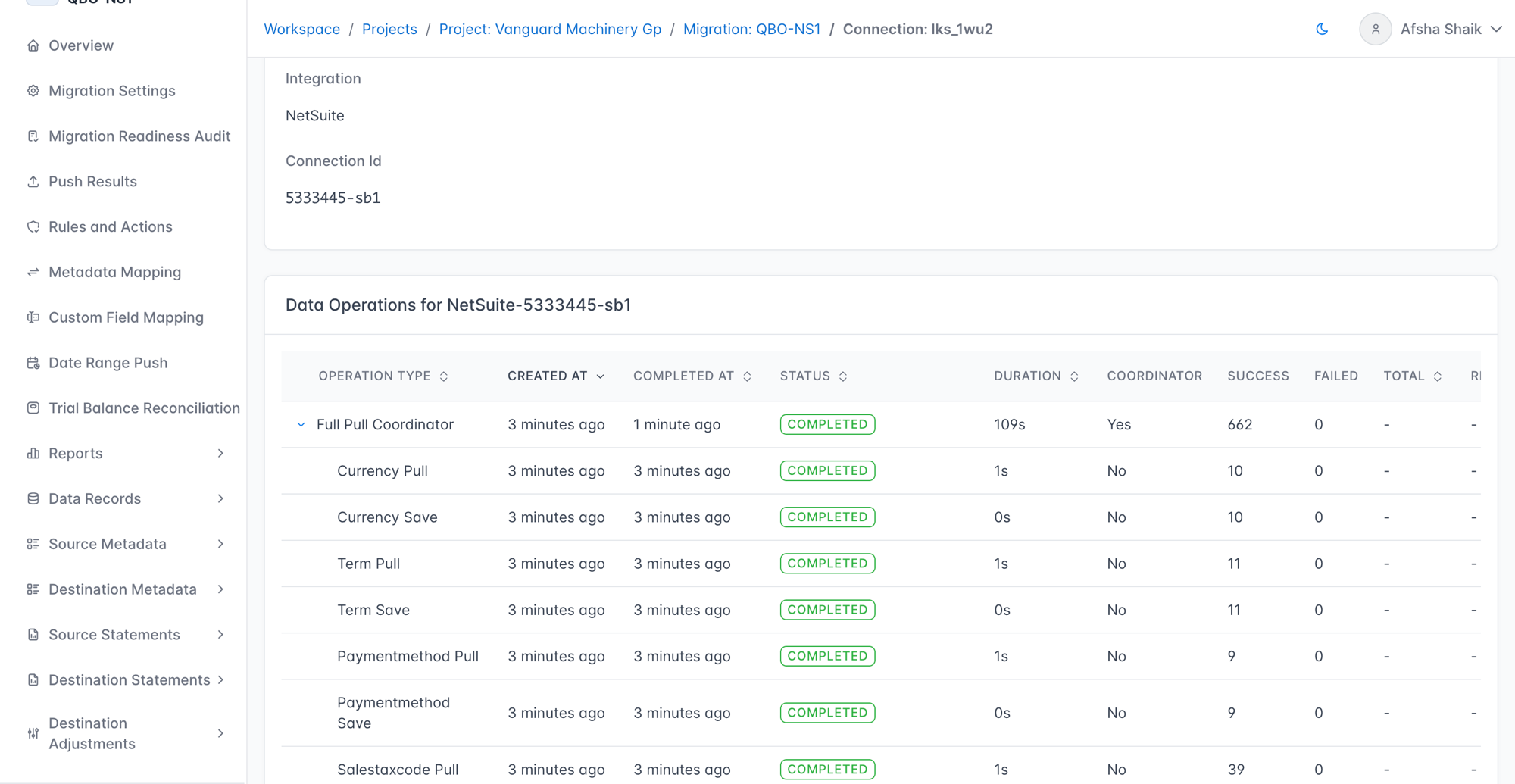
Status values in the Data Operations table:
| Status | Meaning |
|---|---|
| Completed | The pull finished with no errors. |
| Completed with Errors | The pull finished but some records could not be pulled. |
| Failed | The pull did not complete. |
| In Progress | The pull is currently running. |
| Pending | The pull is queued and has not started yet. |
| Skipped | The pull was not needed and was intentionally bypassed. |
While a sync is active, the Data Sync indicator appears in the top right of the page. Clicking it opens the Data Sync Status popover, which shows the connection name, the current object being pulled, and a mini progress bar. Click View connection in the popover to jump to the connection detail page.
Troubleshooting
| Symptom | Likely cause | What to do |
|---|---|---|
| Resync Data is disabled | Another operation (push or sync) is already in progress on this connection. | Wait for the current operation to finish, then retry. |
| Resync Destination Statements is disabled | The destination subsidiary is not configured on the migration, or a push is currently in progress. | Confirm the destination connection and subsidiary are set on the migration overview page. If a push is running, wait for it to finish. |
| Banner: Resync completed with errors. One or more statement refreshes did not succeed. | At least one statement type failed to pull, often a temporary NetSuite API issue. | Wait a few minutes and try the statement resync again. If it persists, check the connection's Data Operations table for the specific error. |
| Data Operations shows Completed with Errors | Some records in a specific object type could not be pulled from NetSuite. | Open the failed job for details. Common causes: a NetSuite record is malformed, locked, or references a deleted subsidiary. |
| Records in a mapping table are missing after a resync | NetSuite returned the data but SuiteMigration could not match it. | Confirm the record exists and is active in NetSuite, then run Resync Data again. |
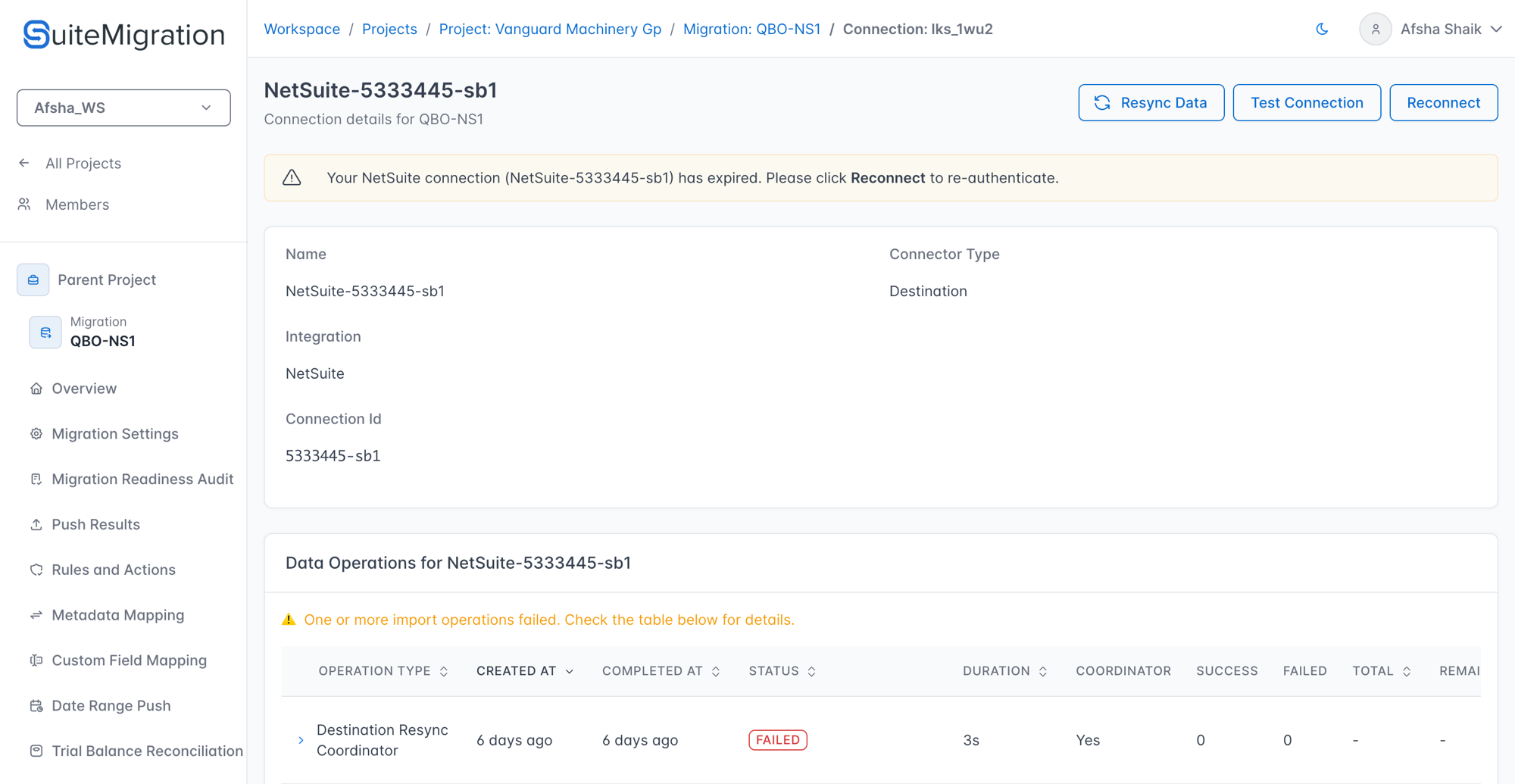
| Banner: Your NetSuite connection has expired. Please click Reconnect to re-authenticate. | The NetSuite OAuth token has expired or been revoked. | Click Reconnect on the connection detail page to re-authenticate, then run Resync Data. |
Contact support@suitemigration.com if an error persists after trying the steps above.