Migration Readiness Audit
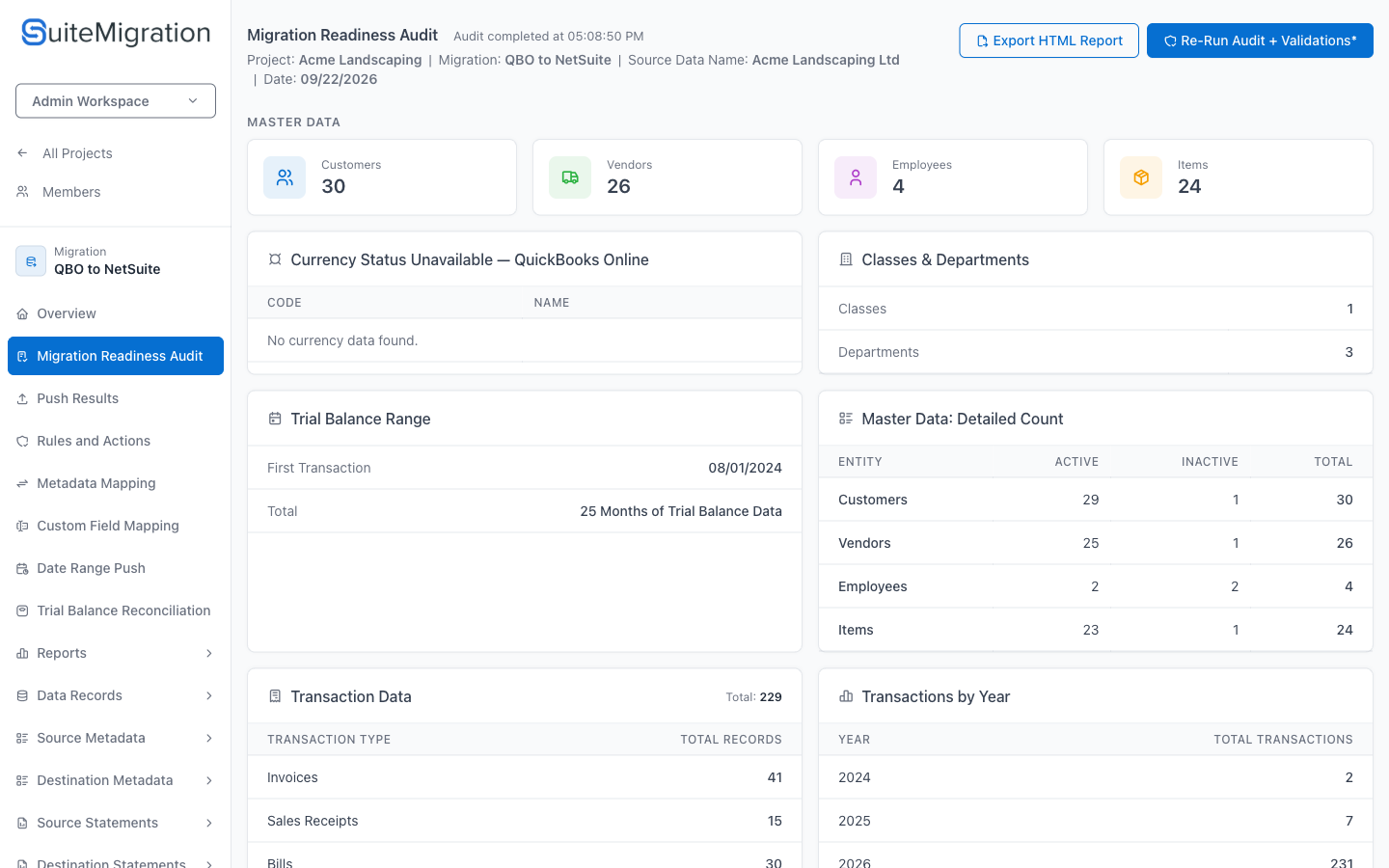
The Migration Readiness Audit is the report you work through before pushing. It brings two things together: a summary of the source data that has been synced, and the results of the validation rules included in this audit.
Use the counts to confirm the sync brought across what you expected, and to agree the size and date range of the migration with your accountant before work starts. Use the Validation Summary and NetSuite Pre-Checks to find the records that need attention while they are still cheap to fix.
A clean audit is a strong signal, and it is the right gate to hold before pushing. It is not the whole picture: the audit checks the data going in, so you still reconcile the financial reports afterwards to confirm what actually landed in NetSuite. Rules outside this report, and NetSuite's own validation at push time, can still surface issues.
Open it from a migration under Migration Readiness Audit.
When to run it
Run the audit:
- After the first source sync, to confirm the record counts and date range look right.
- After metadata mapping, because the NetSuite pre-checks read your mappings and cannot give a useful answer until the mapping is saved.
- Before any push, including a small dry-run push.
- After every round of fixes. Correcting data in the source only changes the result once you have resynced and re-run the validations.
Running the audit
Click Run Audit + Validations at the top right. This re-runs every validation rule against the current source data and then rebuilds the report from the results. It can take a few minutes on a large migration.
While it runs, the button reports progress and a banner names the rule currently being evaluated:
- Starting validation run while the run is being set up.
- Validation run queued when it is waiting for an available worker. This is normal on a busy workspace.
- Running validation rule 16 of 67 once it is working through the rules.
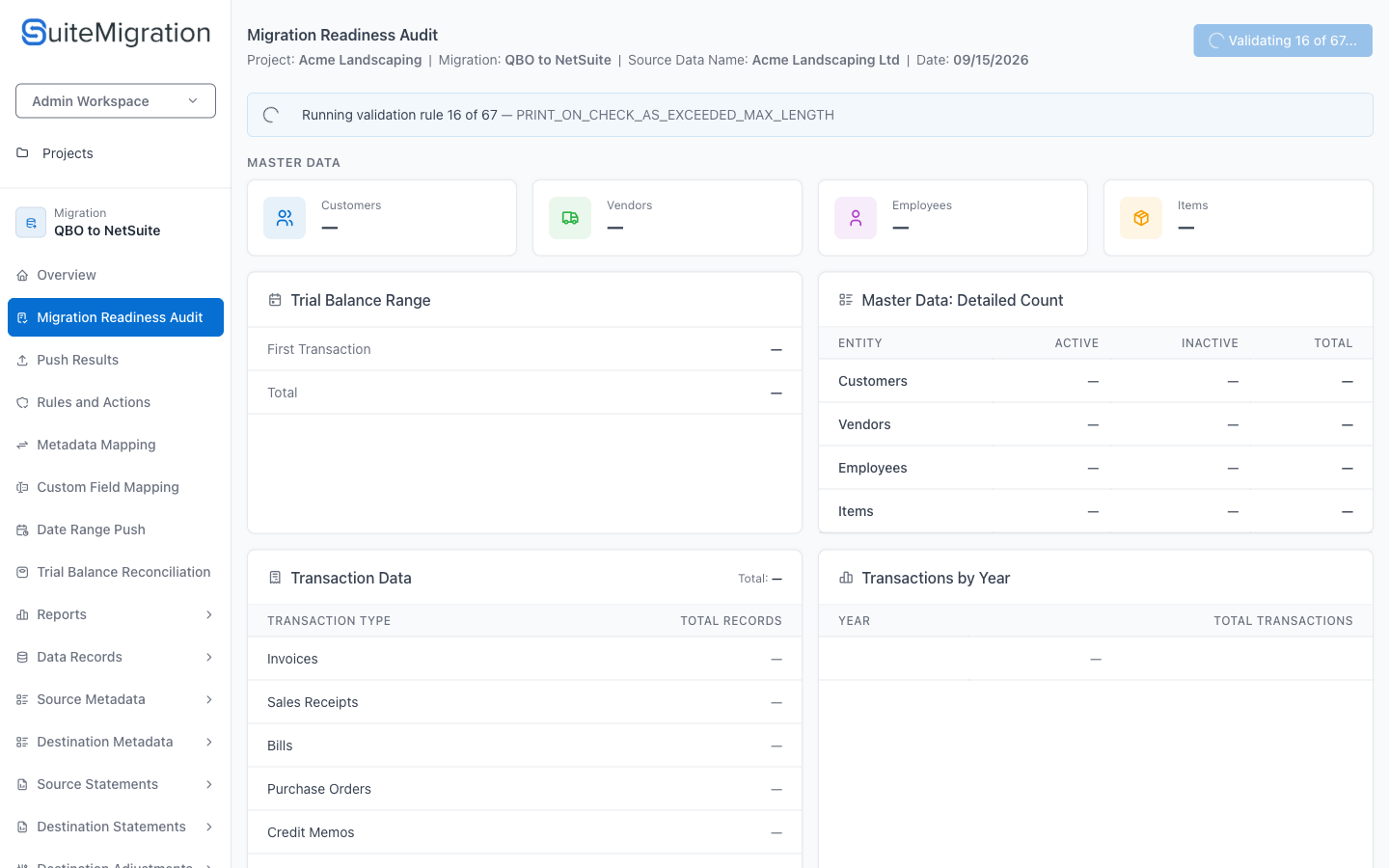
The counts blank out to dashes while the run is in progress. They repopulate when it finishes.
Refreshing the report is not the same as re-running the rules
This distinction matters, because the page does not make it obvious.
Opening the page refreshes the report. It reads the stored results and redraws them, and it updates the Audit completed at time in the header. A recently shown cached copy is painted immediately and then refreshed in the background. None of this re-evaluates a single rule.
Only Run Audit + Validations re-evaluates the rules. So a recent Audit completed at time tells you when the report was last fetched, not when the data was last checked.
The practical rule: after you change anything in the source or in your mappings, resync and then click Run Audit + Validations explicitly. Do not rely on the numbers until you have.
Two more things worth knowing:
- You cannot run the audit while a source sync is in progress. The button is disabled and a banner tells you to wait for the sync to finish. This is deliberate: validating half-synced data produces misleading results.
- If a rule fails to run, a warning lists which ones. The rest of the report is still valid, but those rules have not been evaluated. Re-run the audit, and if the same rule keeps failing, contact support.
- If you have never run validations for this source, a banner says so and warns that the issue counts reflect an unchecked state. An empty Validation Summary is not a clean bill of health.
Reading the counts
The counts describe what was synced. When a number looks wrong, treat it as a prompt to investigate rather than a diagnosis: compare it against the same figure in the source system, for the same date range and the same filters, confirm you are connected to the intended company, and check that the last sync completed.
Master Data
Four cards across the top give the headline totals for Customers, Vendors, Employees, and Items.
Compare each against the equivalent list in the source system. A total that is far from what you expect is usually worth checking against the connected company and the sync status before you go further.
Currency
The card header states what SuiteMigration found: a Single Currency or Multi-Currency org, or Currency Status Unavailable when the source returned no currency data. The table lists each currency code and name.
Check this early. A multi-currency source changes what you need configured on the NetSuite side, and it is better to know before mapping than after a failed push.
Classes & Departments
Record counts for the two dimensions. Use these to confirm they came across at all, and to size the work waiting for you in Metadata Mapping.
Trial Balance Range
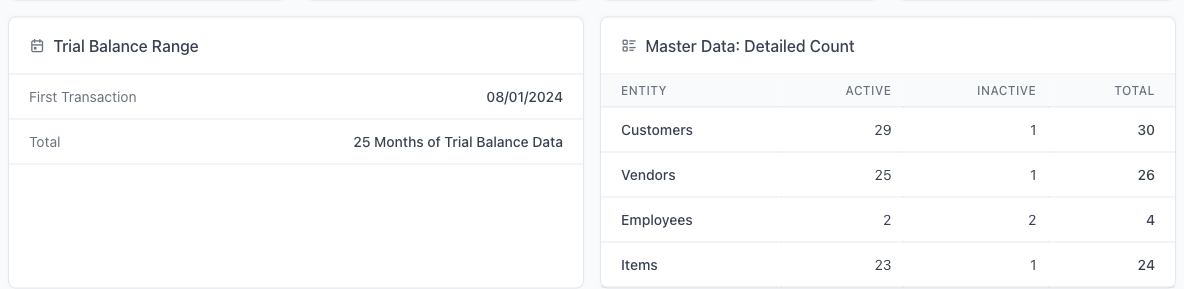
First Transaction is the earliest transaction date in the synced data.
Total is the inclusive span of calendar months between the earliest and the latest synced transaction dates. It is a span, not a measure of coverage:
- It does not count imported monthly trial balance reports.
- It does not confirm that every month in the span has data. Transactions in January and March alone still produce a three-month span, with nothing in February.
So use it to agree the outer boundaries of the migration, and check continuity separately in Transactions by Year.
Master Data: Detailed Count
The same master data split into Active, Inactive, and Total per entity.
The inactive column is worth reading. Inactive customers and vendors are still created in NetSuite when historical transactions reference them, so a large inactive count is a legitimate reason for the NetSuite record count to exceed what the business expects.
Transaction Data and Transactions by Year
Transaction Data lists each transaction type with its record count, and a combined total in the card header. Transactions by Year groups transactions by year.
These two totals are counted differently and will not always agree. The difference is deliberate:
| Transaction Data | Transactions by Year | |
|---|---|---|
| Transaction types | Recognised types only | All types |
| Records with no date | Included | Excluded |
So a source carrying records of an unrecognised type, or records with no transaction date, will show a different total in each card. If the two disagree, that tells you such records exist. It is not in itself an error.
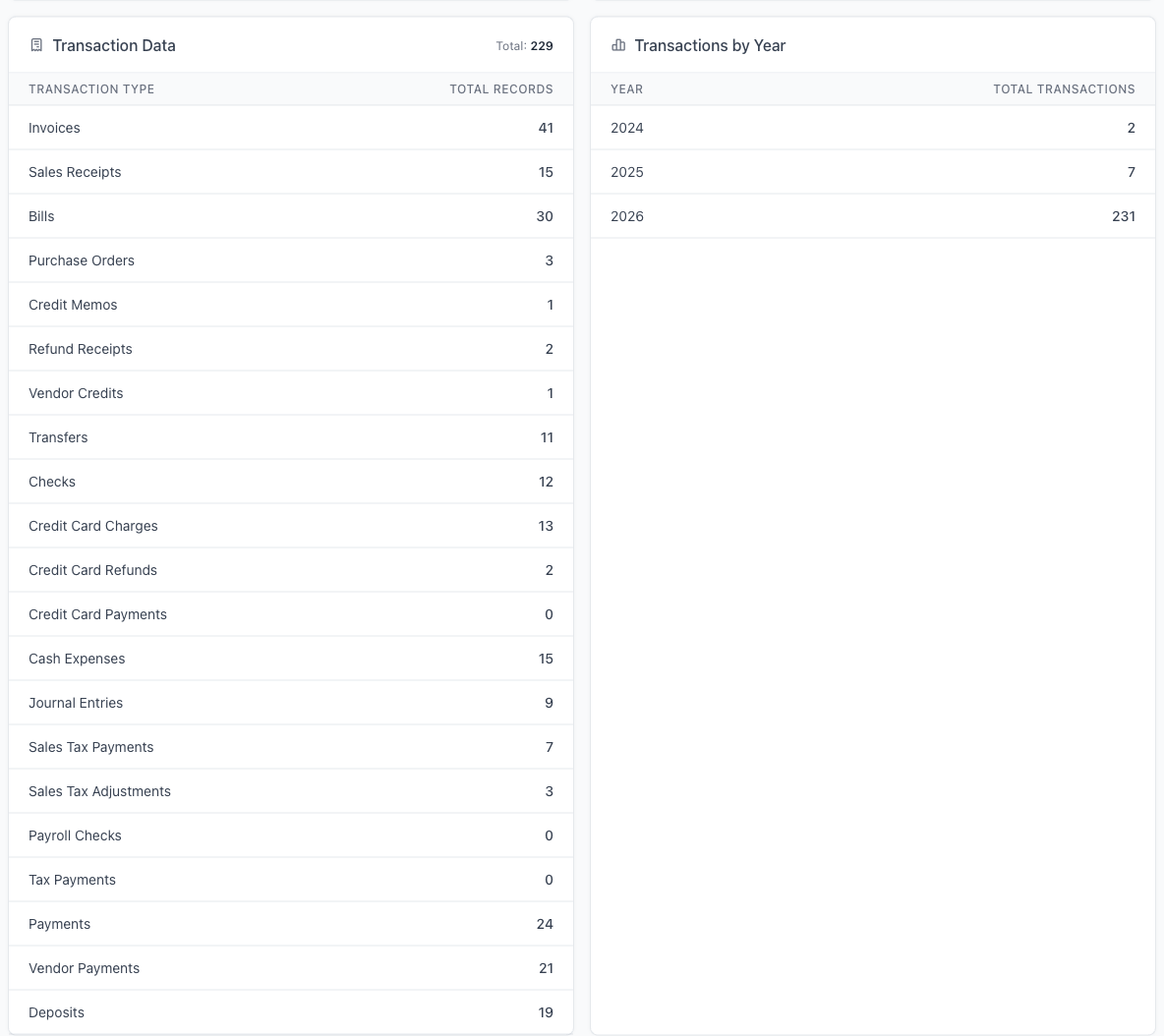
Use Transactions by Year to check continuity across the span. A year with far fewer transactions than its neighbours, or a missing year inside the range, is worth comparing against the source system for that same year before drawing a conclusion.
The Validation Summary
This is where you find the records that need attention.
The header summarises the run: something like 22 records need attention across 15 rules, followed by how many of those rules are fixable in-app, how many rules passed, and how many have not been run.
Two qualifications on that headline:
- It is not a count of distinct records. It adds up each rule's flagged-record count, so a record caught by three rules is counted three times. Treat it as a measure of workload, not of how many records are affected.
- "All N rules passed" can appear while rules are still unevaluated. The passed message and a non-zero Rules Not Run count are shown together. Before concluding the audit is complete, check that Rules Not Run is empty and that no "failed to run" warning is showing.
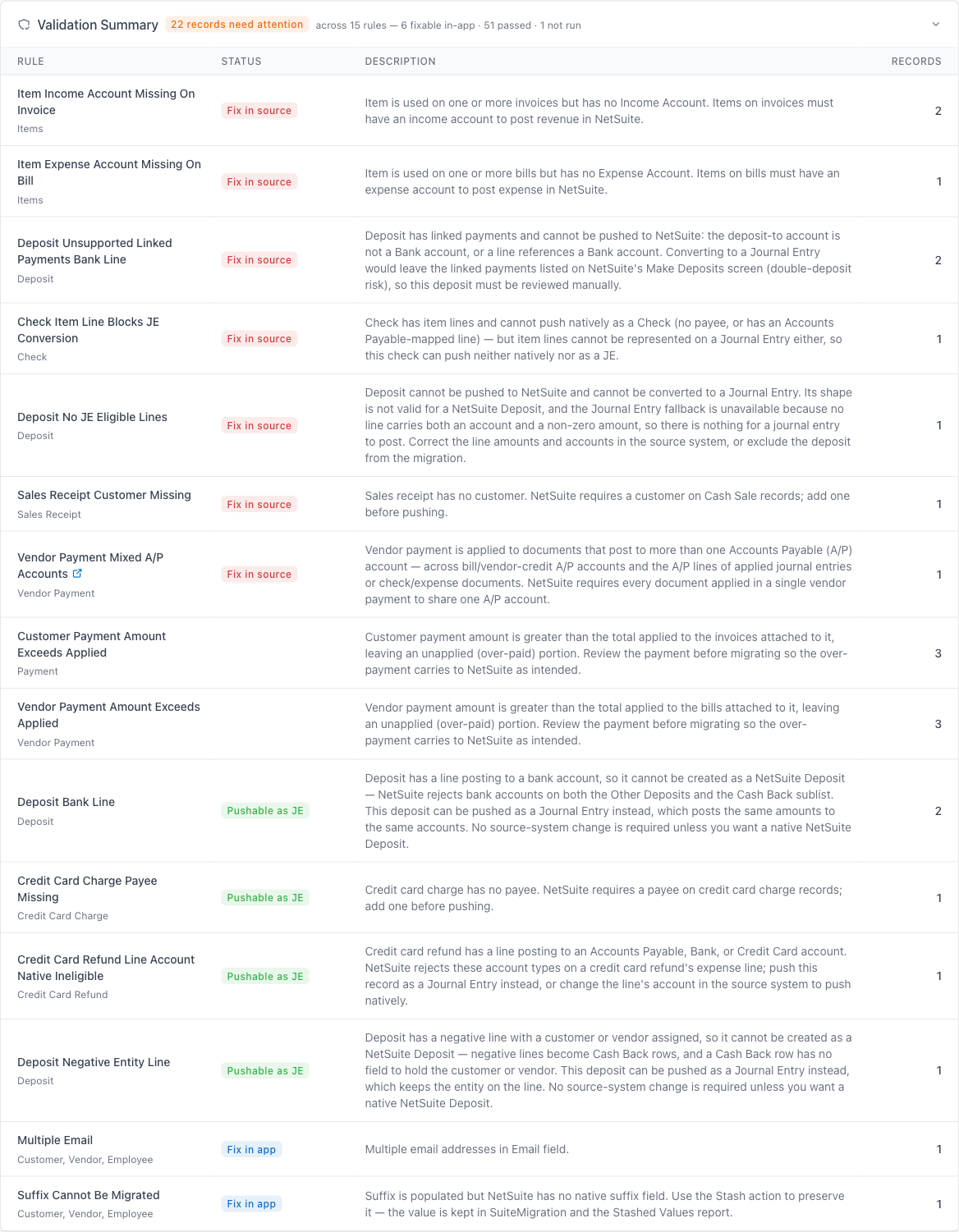
The table lists every rule that needs attention, with four columns:
| Column | What it means |
|---|---|
| Rule | The rule name. Rules with a help article carry a small external-link icon that opens it. |
| Status | The remediation category: where a fix for this rule would happen. |
| Description | What the rule checks. |
| Records | How many records this rule flagged. |
The Status column describes the remedy, not the result
This is the most common misreading of the report. Status is not a pass or fail. It tells you what kind of fix the rule needs if it flags anything. The same badge appears on the same rule whether it flagged 200 records or none, which is why you will see red Fix in source badges sitting in the Rules Passed list against a count of 0.
The result is carried by which section the rule is in: Validation Summary means it flagged records, Rules Passed means it did not, Rules Not Run means it was not evaluated.
The four categories:
- Fix in source - correct the data in the source system and resync. These are listed first because they need work outside SuiteMigration and a full sync round-trip.
- Fix in source / Stashable - best corrected in the source and resynced. Where that is not practical, SuiteMigration can stash the value so the record still pushes; the stashed value does not migrate but is preserved in your stashed data.
- Pushable as JE - the record cannot push as its own type, but can be pushed as a journal entry instead. The reasons vary by rule and include deposit bank lines and account-type restrictions, not only a missing payee.
- Fix in app - resolvable inside SuiteMigration, through actions such as stashing, truncating an over-long value, merging duplicates, or correcting a mapping.
These are categories, not instructions. What a specific rule needs is in its own description and in its remediation guidance on Rules and Actions.
NetSuite Pre-Checks
Kept in a separate collapsible card because these check the NetSuite side rather than your source data. They largely read your metadata mapping, so they are only meaningful once mapping is saved.
The header summarises them the same way, with its own counts: findings across rules, how many passed, how many have not been run. When no pre-checks are available for the migration it says so.
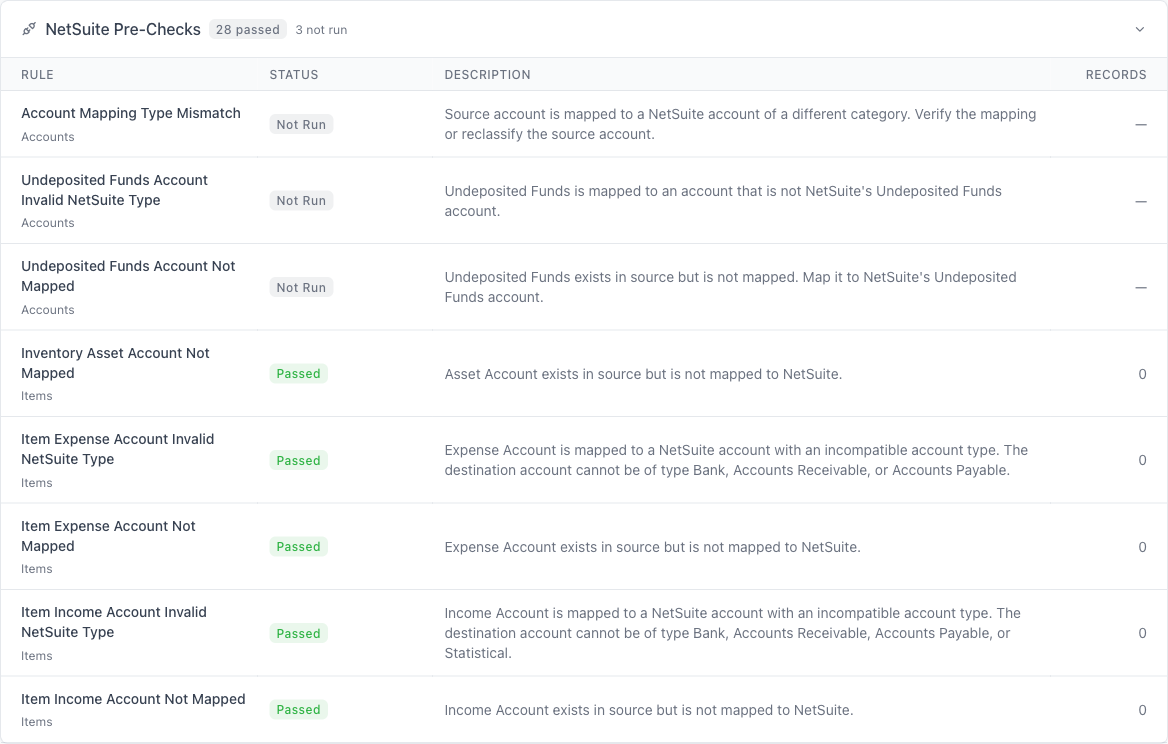
The columns match the Validation Summary with one difference: here the Status column shows the pre-check's actual result, Review, Passed, or not run, rather than a remediation category.
Rules Not Run and Rules Passed
Both are collapsed by default.
Rules Not Run are rules with no result. Unknown, not clean. Running the audit evaluates them. Knowing why a rule was not evaluated does not tell you it would have passed.
Some rules cannot run until something is configured. Rather than a badge, the row carries an instruction under its description telling you what is missing.

The common case is the one above: the Customer Payment Mixed A/R Accounts rule needs the Default A/R account set in Project Settings before it can evaluate anything.
Rules Passed are rules that ran and flagged nothing.
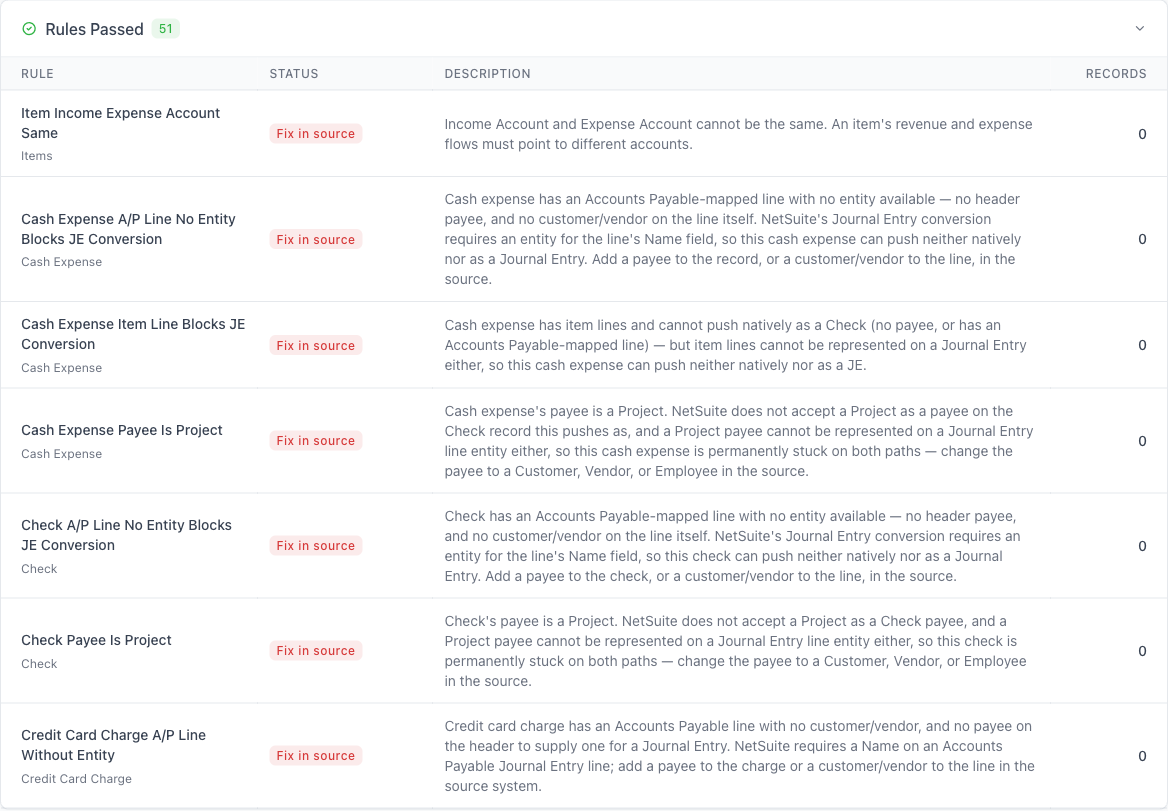
Expand it once before sign-off to confirm the rules you care about genuinely ran and passed, rather than sitting unevaluated in Rules Not Run.
Working through what needs attention
The audit tells you what is wrong. The tools for fixing it live on Rules and Actions, reached from the migration menu, where each rule has controls to view the flagged records and apply whatever actions it supports. The only link on an audit row is to that rule's support article, where one exists.
So the loop is:
- Read the rule in the audit and open its support article if it has one.
- Open Rules and Actions, find the matching rule, and use its view and action controls to inspect the flagged records.
- Resolve them, either by correcting the underlying data or by accepting an alternative the rule supports.
- If you corrected data in the source, resync that connection.
- Re-run Run Audit + Validations.
Correcting a condition and accepting an alternative are different
Both are legitimate resolutions, but only one changes the audit.
Correcting the condition removes what the rule was flagging. Re-run the validations and the rule should move to Rules Passed. That confirms the fix.
Accepting an available alternative leaves the source condition in place. Choosing to push a record as a journal entry, for example, resolves how it will migrate without changing the data that was flagged, so the rule can still report it after a re-run. That is expected. Record the decision somewhere your team can see it, rather than waiting for a rule to turn green.
Two rules have detailed walkthroughs today:
- Mixed A/P Account Rule for vendor payments applying to documents that post to more than one A/P account.
- Mixed A/R Account Rule for the customer-payment equivalent.
Export HTML Report
Export HTML Report saves the audit as a single self-contained HTML file: the counts, the Validation Summary, the NetSuite Pre-Checks, and the collapsed Rules Not Run and Rules Passed sections.
This is the artefact to send to a client or an accountant for sign-off, and the one to keep for your records. It captures what the data looked like at that point, which is worth having if a question comes up after go-live about what was known beforehand.
Before you sign off
Not every finding carries the same weight, so separate them before deciding you are ready.
Blocking findings have to be resolved. A record that cannot push, or would push incorrectly, needs the underlying data corrected, or an alternative the rule supports applied, or the record excluded from the migration. Understanding why a record is blocked does not make it pushable.
Advisory findings and accepted alternatives can be reviewed and signed off once someone has looked at them and made a decision, with the decision recorded.
Unevaluated rules are neither. A rule in Rules Not Run has no result. Run it, or configure whatever it needs so it can run, before treating the audit as complete.
So, before pushing:
- The counts match what the business expects, in volume and date range, checked against the source.
- Every rule has been evaluated, with nothing left in Rules Not Run and no "failed to run" warning.
- Blocking findings are corrected, resolved by a supported alternative, or excluded.
- Advisory findings have been reviewed and the decisions recorded.
Then push a small date range first and reconcile it before pushing the full history.