Mixed A/R Account Rule
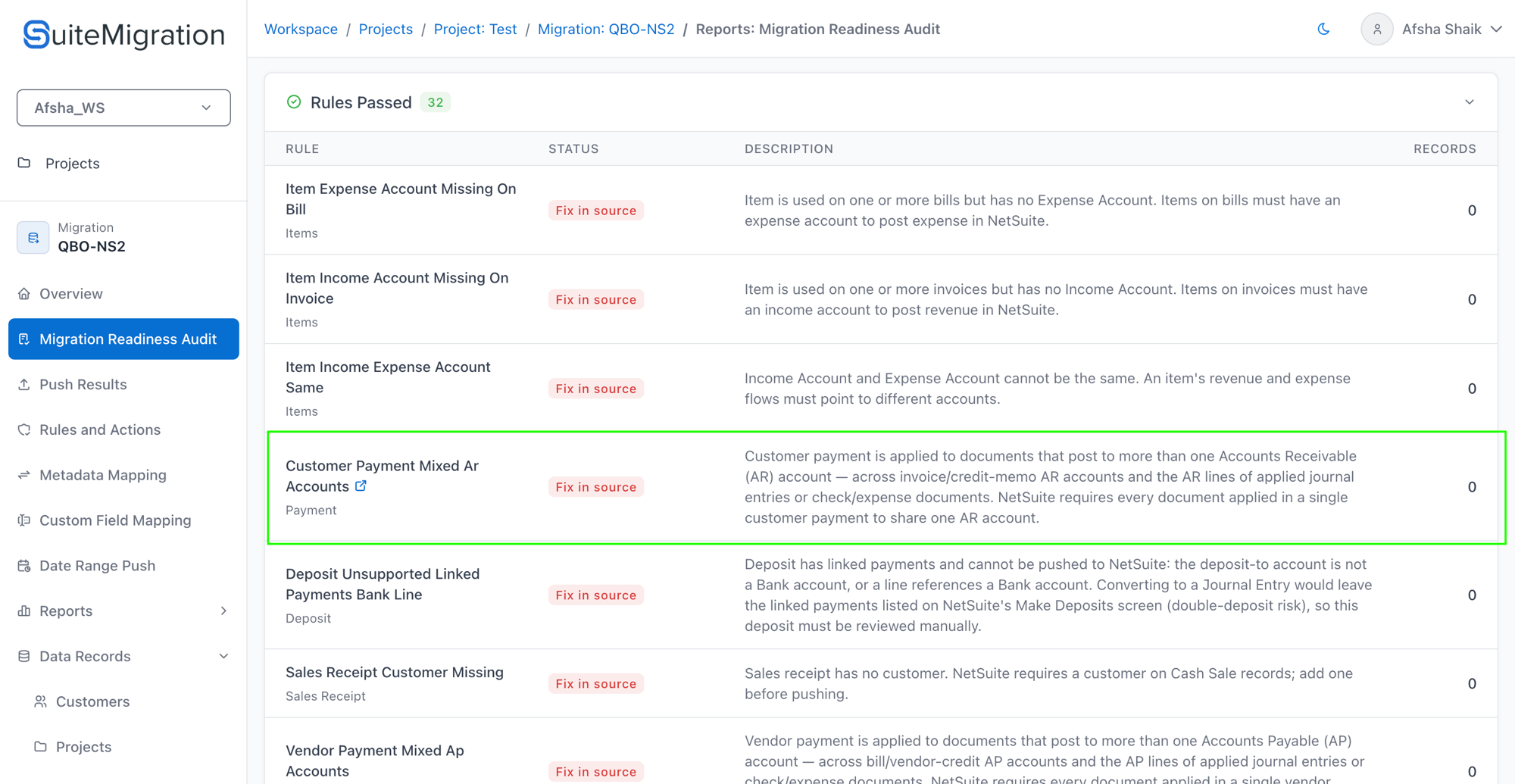
The Mixed A/R Account rule flags customer payments that apply to documents posting to more than one Accounts Receivable (A/R) account. NetSuite doesn't allow this — a CustomerPayment supports a single header A/R account — so a mixed-A/R customer payment will fail on push.
Prerequisite — set the Default A/R Account
The rule needs to know which NetSuite A/R account counts as your default — because QBO omits the A/R reference on invoices that use the default A/R account, and SuiteMigration has to resolve those blanks before it can compare.
If the default A/R account is not set, the rule shows a Not Configured status on the Migration Readiness Audit — the rule runs but produces no results.
How to identify your default A/R account in NetSuite
If you're not sure which A/R account counts as your default in NetSuite:
- In NetSuite, go to Setup → Accounting → Accounting Preferences.
- Open the Items/Transactions tab.
- Look for the Default Receivables Account field under the Accounts section — the account shown there is your default.
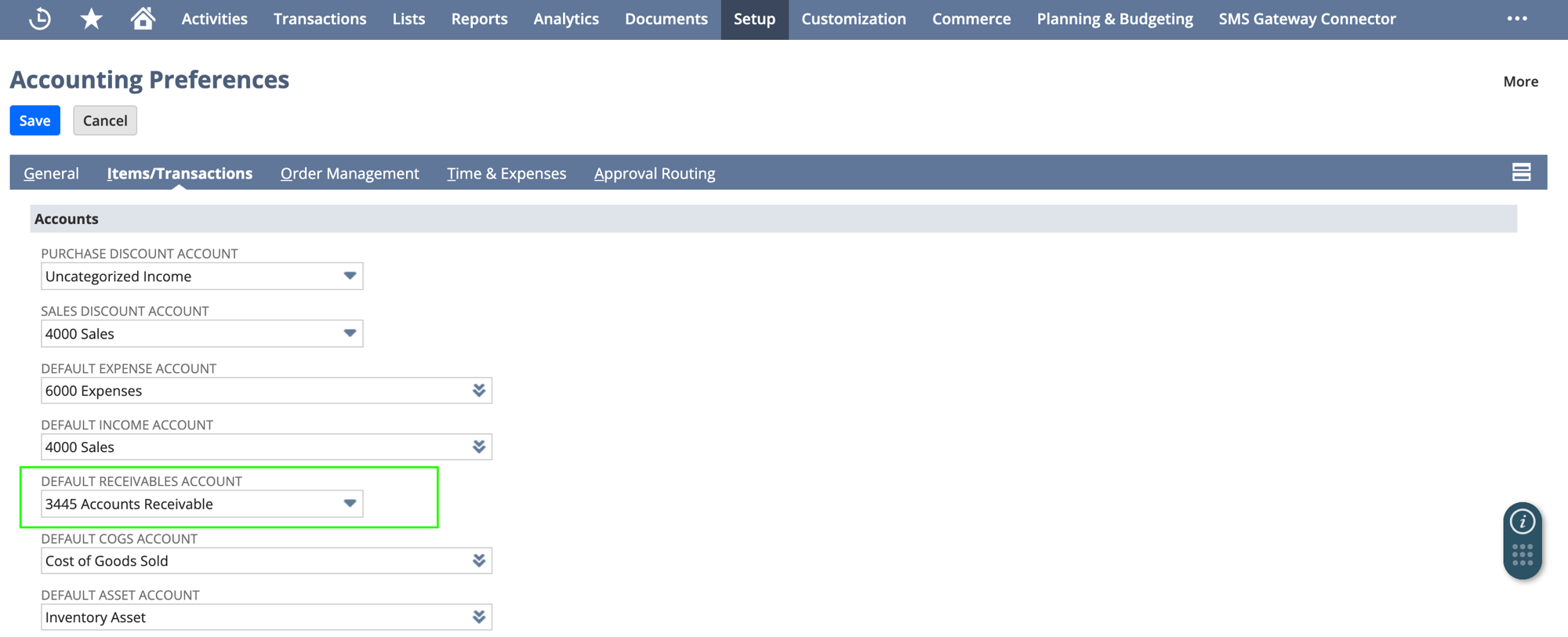
If nothing is set on that preference, the quickest way to find the effective default is:
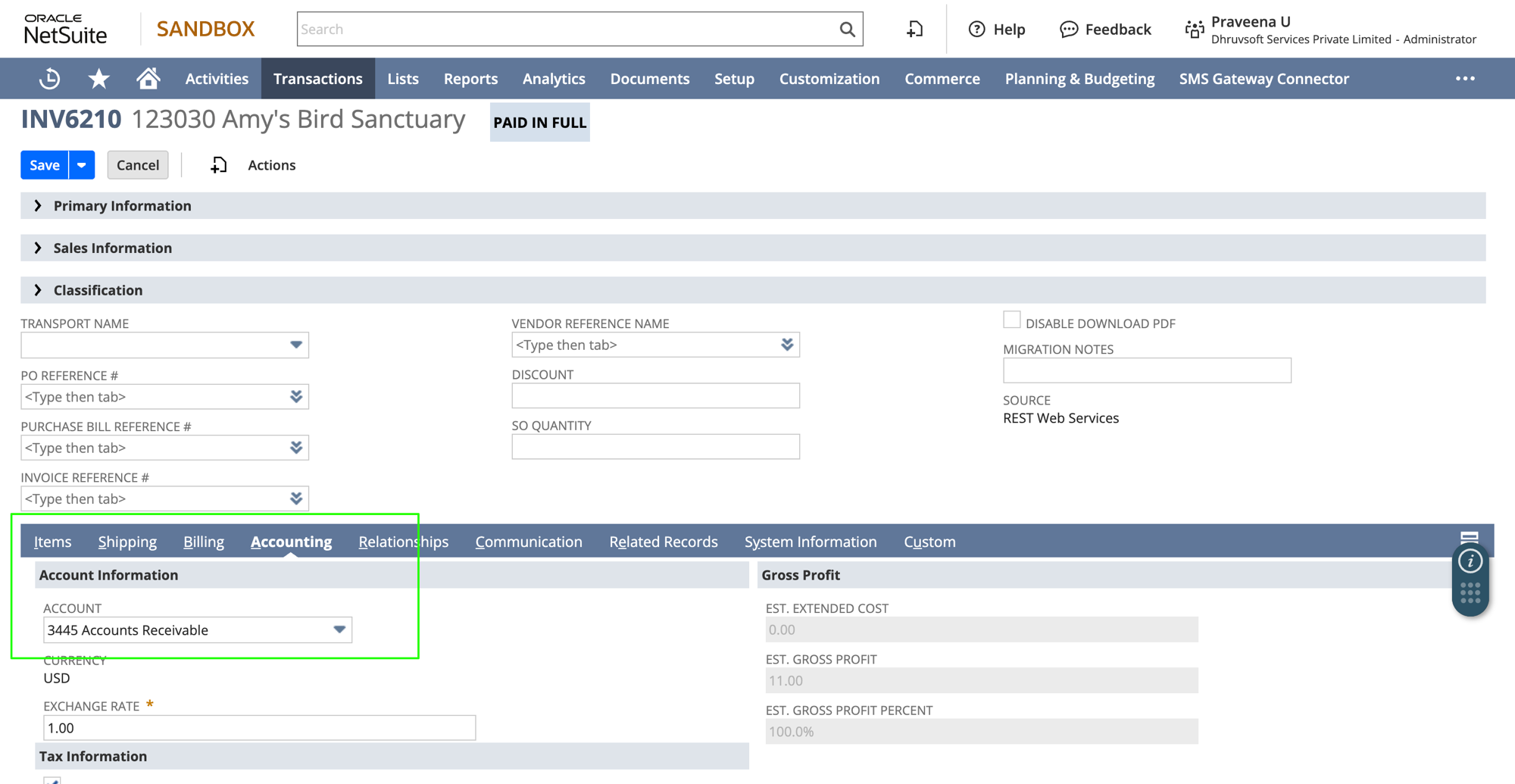
- Open any invoice in NetSuite, or create a new one.
-
Click Edit and look at the Account field on the invoice.
-
Whatever account NetSuite pre-fills there is the one it treats as the default — use that in SuiteMigration's Project Settings.
Setting it
- Open your project in SuiteMigration.
- Go to Project Settings → Validation.
- Under Default A/R Account, pick your NetSuite default receivables account from the dropdown.
- Click Save.
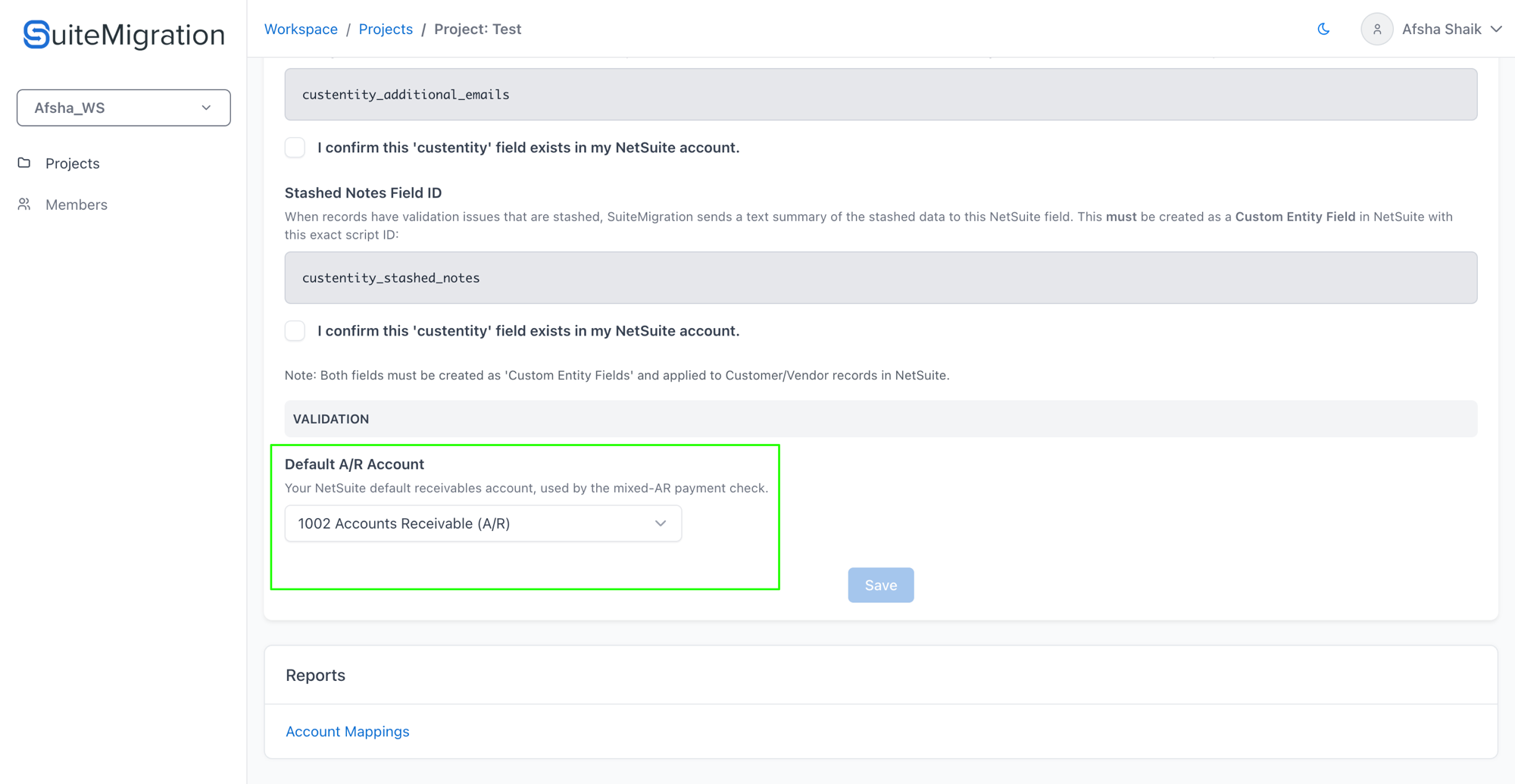
The dropdown is populated with A/R accounts pulled from your connected NetSuite destination. If you see "No NetSuite A/R accounts found yet", connect and sync the NetSuite destination first, then come back.
Once saved, re-run the Migration Readiness Audit — the Mixed A/R rule will begin producing real results.
The push error
If a mixed-A/R customer payment reaches a push attempt, the push fails with an error like this on the customer-payment record in SuiteMigration:

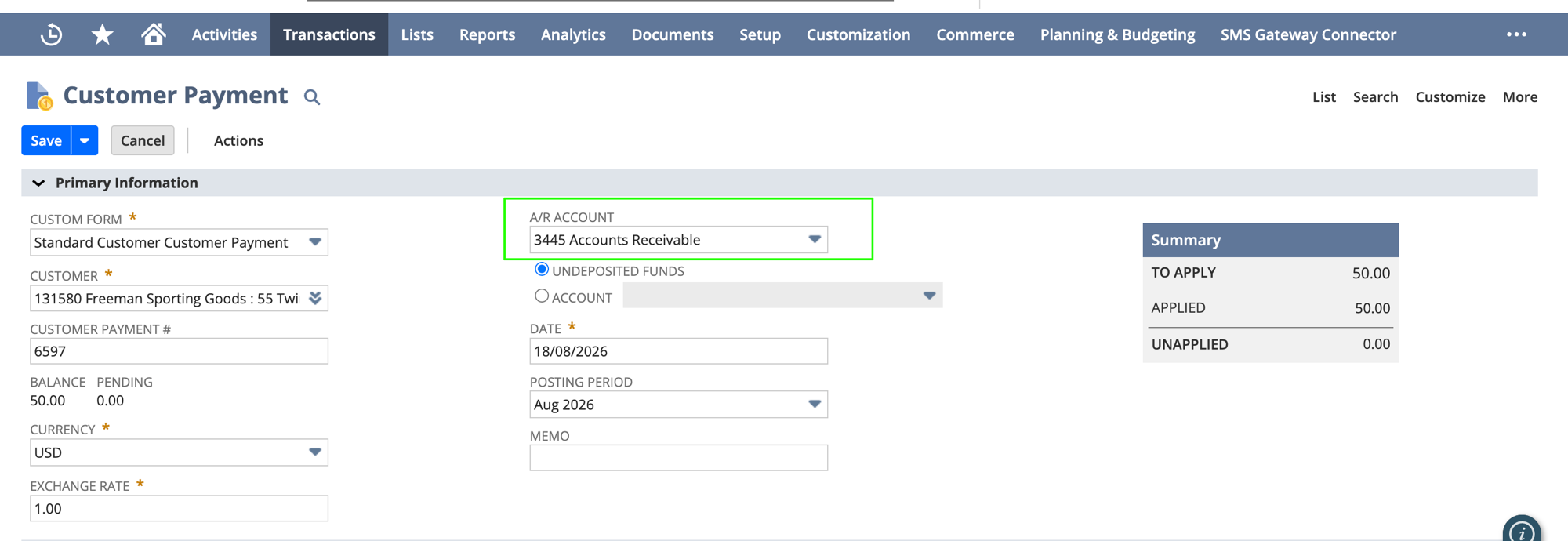
In NetSuite a CustomerPayment has one header A/R account, and it can only apply to invoices, credit memos, and journal entries that post to that same A/R account. That single header field is set on NetSuite's Accept Payment screen:
A concrete example
Here's what a flagged customer payment looks like in SuiteMigration. The Related Transactions section on the record lists the two applied documents, each posting to a different A/R account:

Because the customer payment applies to both documents, and each posts to a different A/R account, NetSuite rejects the push with the "applies documents posting to multiple A/R accounts…" error shown above.
How to fix a flagged customer payment
The fix has to happen in the source system. Split the mixed customer payment into separate customer payments in QBO — one per A/R account.
-
On the flagged customer-payment record in SuiteMigration, click Open in QuickBooks Online.

-
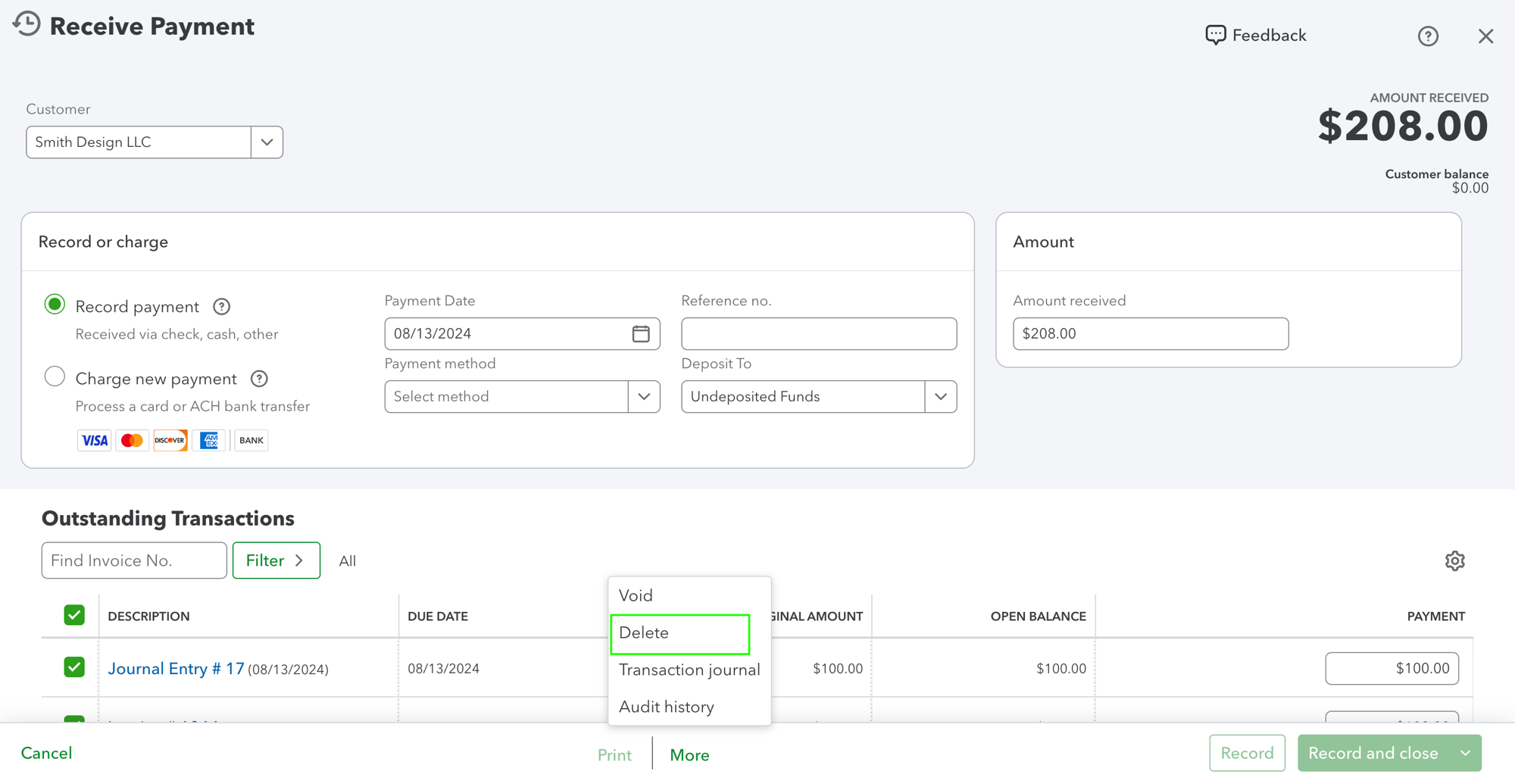
In QBO, delete the existing Receive Payment.
-
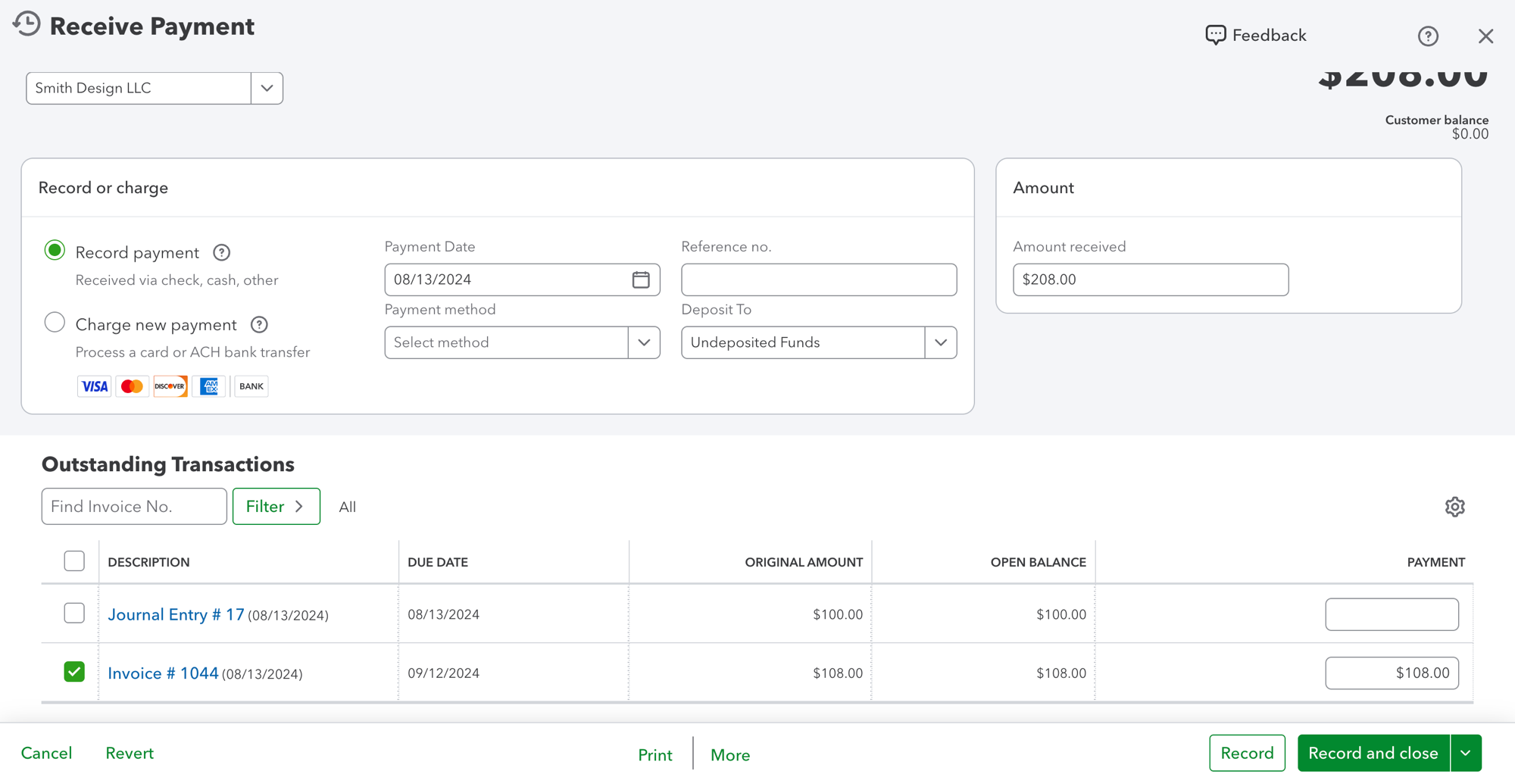
Create a new Receive Payment in QBO applying only the documents that share the first A/R account.
-
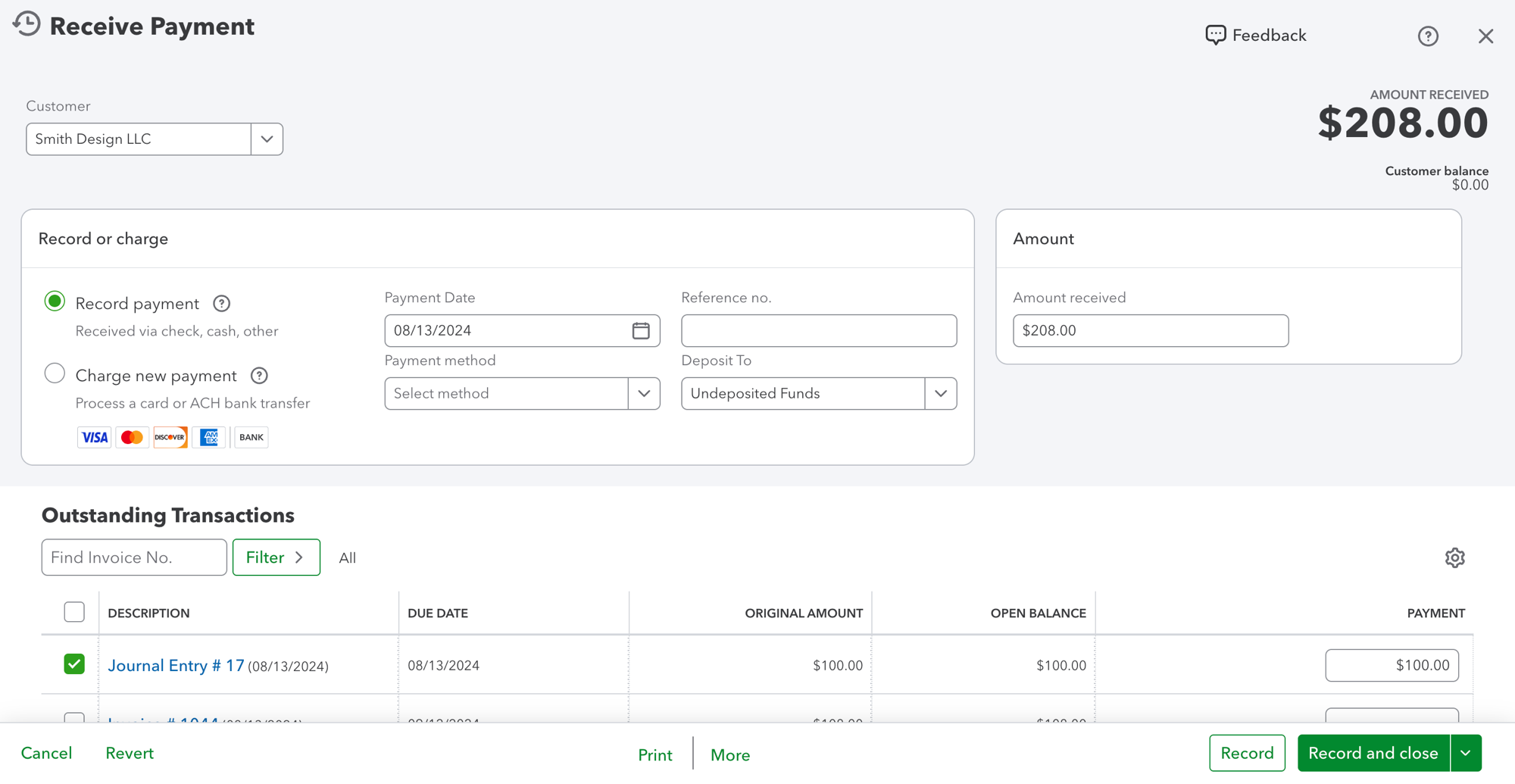
Create a second Receive Payment in QBO for the remaining document(s) that share the second A/R account.
-
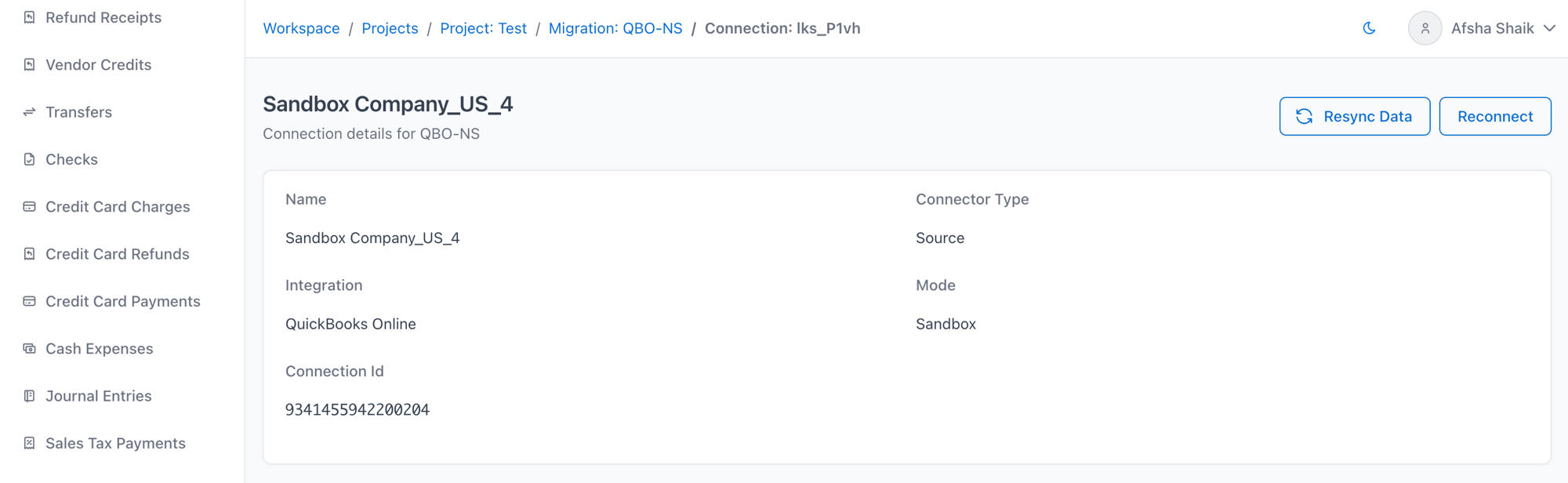
In SuiteMigration, open the source connection and click Resync Data. This triggers a full sync so the deleted payment drops off and the two new customer payments land.
-
Re-run the Migration Readiness Audit. The rule should now show Passed for these payments.
-
Push again. The two new customer payments should now succeed.
Related rule — Mixed A/P Account
Vendor payments have the same problem on the payables side. The Mixed A/P Account Rule runs against vendor payments using the same logic against A/P accounts (bill/vendor-credit headers plus A/P lines on JEs, checks, cash expenses, and credit card charges/refunds).
Unlike the A/R rule, the A/P rule doesn't need a project setting — if exactly one A/P account exists on the source, blanks resolve to it automatically; otherwise the payment is flagged as an ambiguous default.