Deletion Scripts
The SuiteMigration Admin Toolkit safely deletes NetSuite records in bulk using a background process. This guide covers deploying the toolkit in your NetSuite account and using it.
Overview
The toolkit consists of two scripts:
- Suitelet Script — provides the user interface to select the subsidiary, External ID criteria, record type and date filter, preview the deletion, and monitor progress. It also renders the About SuiteMigration tab.
- Map/Reduce Script — performs the bulk deletion asynchronously in the background.
How they work together: the Suitelet collects your selection and submits a Map/Reduce task with seven script parameters. The Map/Reduce script builds a saved search from those parameters and deletes the matching records. The Suitelet then polls the task status to display live progress and the final deleted / failed counts.
Step 1 — Upload Script Files
- Navigate to Documents → Files → SuiteScripts.
- Click Add File and upload both files:
Step 2 — Create the Map/Reduce Script
- Navigate to Customization → Scripting → Scripts → New.
- Select the file
SuiteMigration_AdminToolkit_MapReduce.js. - Click Create Script Record.
- Enter the following details:
- Name:
SuiteMigration Admin Toolkit – Delete Records(or any preferred name) - ID:
_sm_toolkit_delete_mr(mandatory — used in script)
- Name:
Step 3 — Add Script Parameters
Go to the Parameters subtab and add all seven parameters below. Every parameter is of type Free-Form Text, and every ID is mandatory because it is referenced in the script.
- Record Type
- ID:
_sm_recordtype
- ID:
- Subsidiary
- ID:
_sm_subsidiary
- ID:
- External ID
- ID:
_sm_externalid
- ID:
- Transaction Date From
- ID:
_sm_trandate_from
- ID:
- Transaction Date To
- ID:
_sm_trandate_to
- ID:
- Created Date From
- ID:
_sm_createddate_from
- ID:
- Created Date To
- ID:
_sm_createddate_to
- ID:
Labels can be anything you prefer. Click Save.
Important: enter parameter IDs without the custscript_ prefix. NetSuite adds it automatically.
Step 4 — Deploy the Map/Reduce Script
- Open the Map/Reduce script record.
- Click Deploy Script.
- Configure the deployment:
- Title:
Delete Records Deployment(or any preferred title) - ID:
_sm_toolkit_delete_mr(mandatory — used in script) - Log Level:
Debug - Status:
Testing - Execute As Role:
Administrator(or appropriate role)
- Title:
- Click Save.
Step 5 — Create the Suitelet Script
- Navigate to Customization → Scripting → Scripts → New.
- Select the file
SuiteMigration_AdminToolkit_SuiteLet.js. - Click Create Script Record.
- Enter the following details:
- Name:
SuiteMigration Admin Toolkit(or any preferred name) - ID:
_sm_toolkit_suitelet(or any preferred ID — not used in script)
- Name:
- Click Save.
Step 6 — Deploy the Suitelet Script
- Open the Suitelet script record.
- Click Deploy Script.
- Configure the deployment:
- Title:
SuiteMigration Admin Toolkit(or any preferred title) - ID:
_sm_toolkit_suitelet_deploy(or any preferred ID) - Log Level:
Debug - Status:
Released - Execute As Role:
Administrator(or appropriate role) - Audience → Roles:
Administrator
- Title:
- Click Save.
Accessing and Using the Script
- Open the Suitelet deployment record.
- Copy the Internal URL or External URL.
- Paste the URL into your browser.
-
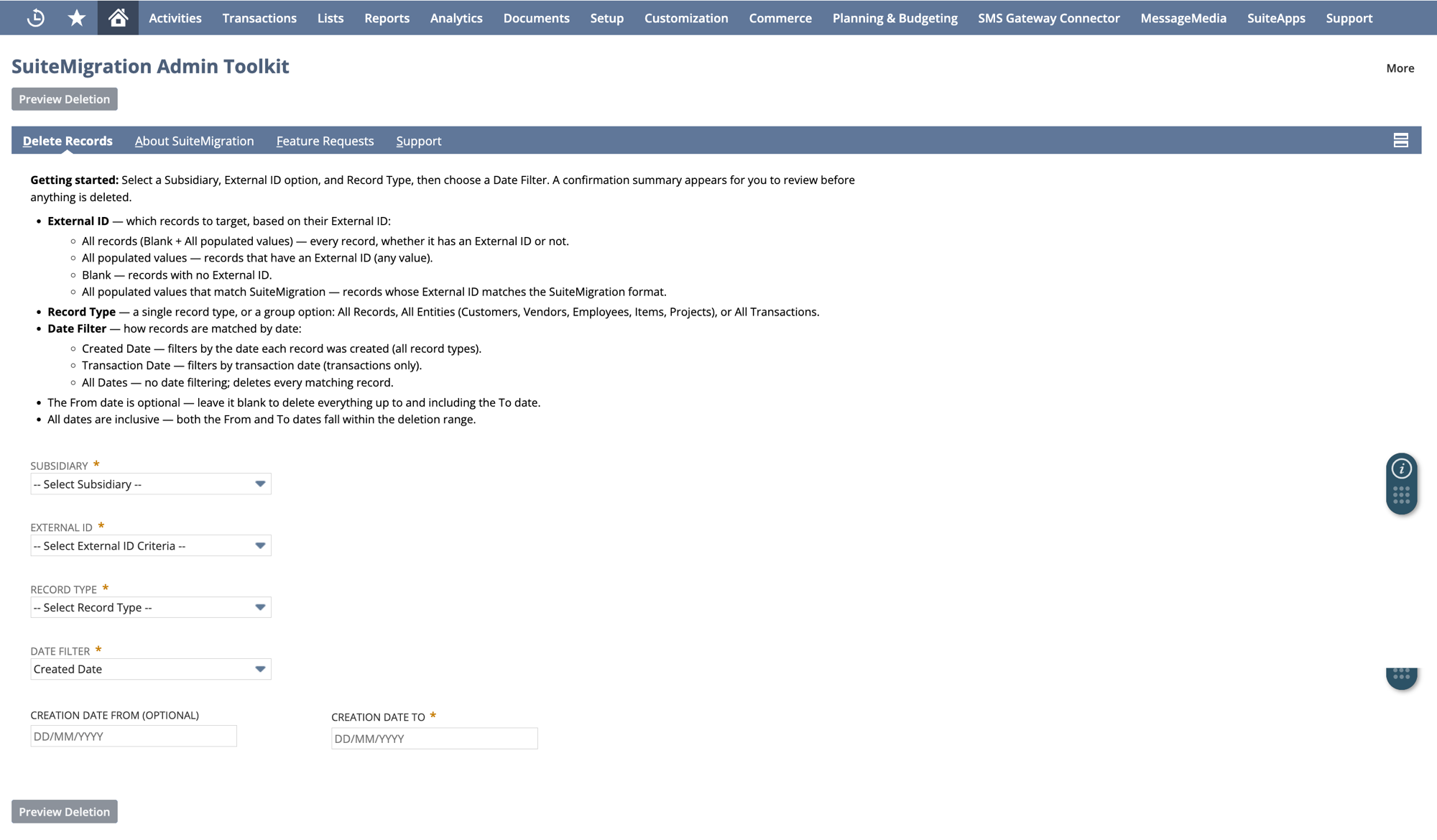
The page opens with two tabs — Delete Records (the deletion form) and About SuiteMigration (product information and links).
-
Select a Subsidiary — only active subsidiaries are listed.
- Select an External ID option — determines which records to target based on their External ID:
- All records (Blank + All populated values) — every record, with or without an External ID
- All populated values — records that have an External ID (any value)
- Blank — records with no External ID
- All populated values that match SuiteMigration — records whose External ID matches the SuiteMigration format
- Select a Record Type — choose an individual type or a group option:
- All Records — deletes all supported record types (transactions + entities/items)
- All Entities — deletes all Customers, Vendors, Employees, Items and Projects
- All Transactions (including Journal Entries) — deletes all transaction types
- Or select an individual record type (Customers, Vendors, Items, Invoices, etc.)
- Select a Date Filter option:
- Created Date (default) — filters by record creation date. Available for all record types
- Transaction Date — filters by transaction date. Available for transaction types only (not for Customers, Vendors, Employees, Items or Projects)
- All Dates — deletes all records for the selected subsidiary and record type, without any date filtering
- If using a date range option:
- The To date is required.
- The From date is optional — leave it blank to delete all records up to and including the To date.
- All dates are inclusive — both the From and To dates are included in the deletion range.
- Click Preview Deletion. The button stays greyed out until Subsidiary, External ID and Record Type are selected (and a To date, if a date range is chosen).
-
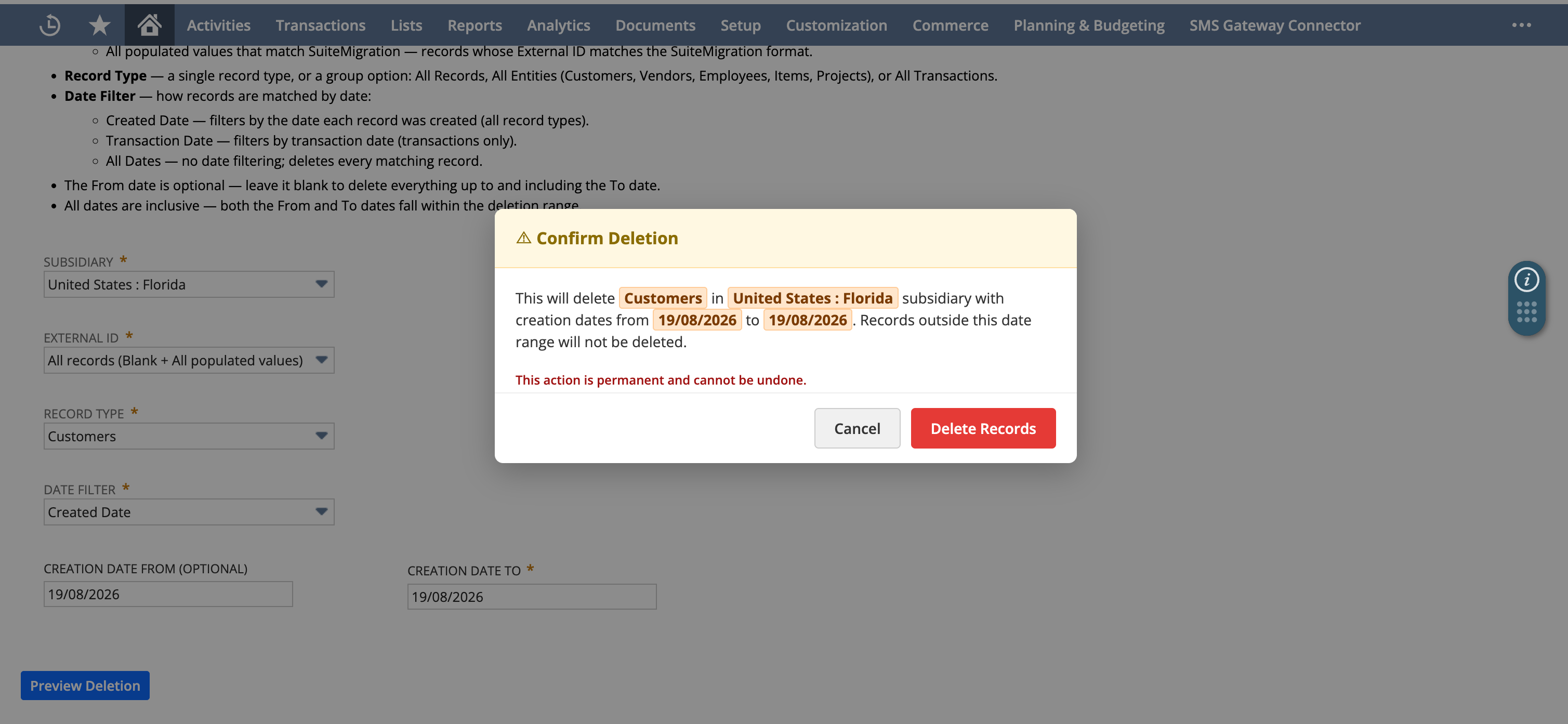
A confirmation modal opens showing exactly what will be deleted, with a permanent-action warning:
- Cancel — closes the modal, nothing is deleted
- Delete Records — starts the deletion
-
The Map/Reduce script runs in the background and a progress page is displayed.
- The progress page shows:
- "Scanning records…" while the search runs
- "Deleting: 8,400 of 20,000 records" — the percentage reflects the actual number of records processed
- On completion, a summary: Total — Deleted: X · Failed: Y (failures shown in red)
- For group options, the progress page additionally shows:
- The record type currently being processed (e.g. "Currently processing: Invoices")
- Overall progress with status for each type (Completed / Processing / Pending)
- Each type's own Deleted / Failed counts, with any type that had failures highlighted
- Each type is processed one by one in the correct dependency order (payments before invoices, transactions before entities)
- Once all types are done, the page updates to All Records Deleted.
Supported Record Types
Group options
- All Records — all transactions plus Projects, Customers, Vendors, Employees and Items
- All Entities — Projects, Customers, Vendors, Employees, Items
- All Transactions (including Journal Entries) — all transaction types listed below
Entities (Created Date filtering only)
- Customers —
customer - Vendors —
vendor - Employees —
employee - Items —
item - Projects —
job
Transactions (support Created Date and Transaction Date)
- Invoices —
invoice - Customer Payments —
customerpayment - Credit Memos —
creditmemo - Vendor Bills —
vendorbill - Vendor Payments —
vendorpayment - Vendor Credits —
vendorcredit - Checks —
check - Deposits —
deposit - Cash Sales —
cashsale - Cash Refunds —
cashrefund - Cash Expenses —
cashexpense - Credit Card Charges —
creditcardcharge - Credit Card Refunds —
creditcardrefund - Purchase Orders —
purchaseorder - Transfers —
transfer - Journal Entries —
journalentry - Journal Entries matching SuiteMigration Trial Balance push —
journalentry_sm
Record Selection Criteria
Records are deleted based on the following filters, all combined with AND — a record is deleted only if it satisfies every applied condition:
- Subsidiary — always required; matches the selected subsidiary
- External ID — the selected External ID criteria (see below)
- Record Type — the selected record type, plus any type-specific condition (see below)
- Date Filter — the selected date range, if any
External ID conditions
- All records (Blank + All populated values) — no External ID filter is applied
- All populated values —
externalid IS NOT NULL - Blank —
externalid IS NULL - All populated values that match SuiteMigration — External ID matches
{org_id}__{source_id}__{prefix}_{id}with prefixescmp_/txn_/itm_, or begins withsm_net/sm_rebuild/sm_manual
Special record types
Three record types are not standard NetSuite record types — they are Checks or Journal Entries identified by a SuiteMigration External ID pattern:
- Cash Expenses — stored as a Check; identified by an External ID ending
__cex_chk - Transfers — stored as a Journal Entry; identified by an External ID ending
__trf_jrn - Journal Entries matching SuiteMigration Trial Balance push — stored as a Journal Entry; identified by an External ID containing
sm_net/sm_rebuild/sm_manual
To keep them separate, the plain types explicitly exclude them:
- Checks — excludes External IDs ending
__cex_chk - Journal Entries — excludes External IDs ending
__trf_jrn, and those containingsm_net/sm_rebuild/sm_manual
Note: because these three types are defined by having a SuiteMigration External ID, selecting Blank with them correctly returns no records — a record with no External ID cannot be one of them.
Date range details
- Only one date range is used at a time, selected via the Date Filter dropdown.
- Transaction Date is only available for transaction types. It is not available for Customers, Vendors, Employees, Items or Projects.
- In a group deletion where Transaction Date is selected, entity types automatically fall back to Created Date.
- Created Date searches
datecreatedfor entities and transactions, andcreatedfor items. - The From date is optional — leave it blank to delete all records up to and including the To date.
- All dates are inclusive — both the From and To dates are included in the deletion range.
Required IDs Reference
The following IDs are hardcoded in the scripts and must match exactly:
- Map/Reduce Script — required ID
_sm_toolkit_delete_mr, final system IDcustomscript_sm_toolkit_delete_mr - Map/Reduce Deployment — required ID
_sm_toolkit_delete_mr, final system IDcustomdeploy_sm_toolkit_delete_mr - Parameter – Record Type — required ID
_sm_recordtype, final system IDcustscript_sm_recordtype - Parameter – Subsidiary — required ID
_sm_subsidiary, final system IDcustscript_sm_subsidiary - Parameter – External ID — required ID
_sm_externalid, final system IDcustscript_sm_externalid - Parameter – Transaction Date From — required ID
_sm_trandate_from, final system IDcustscript_sm_trandate_from - Parameter – Transaction Date To — required ID
_sm_trandate_to, final system IDcustscript_sm_trandate_to - Parameter – Created Date From — required ID
_sm_createddate_from, final system IDcustscript_sm_createddate_from - Parameter – Created Date To — required ID
_sm_createddate_to, final system IDcustscript_sm_createddate_to
The Suitelet's own script and deployment IDs are not referenced in the code — you may use any IDs for those.
Troubleshooting
- "Script not found" / task fails to submit — the Map/Reduce Script ID or Deployment ID does not match the Required IDs Reference.
- "Missing required parameters: record type or subsidiary" — one or more parameter IDs don't match the Required IDs Reference, or the parameters were not saved on the script record.
- "A delete task is already running" — a previous Map/Reduce deployment is still processing. Wait for it to finish.
- Progress completes but no Deleted / Failed counts shown — the counts are passed via
N/cache; the page falls back to a plain "Completed" message. Check the Map/Reduce execution log for the Summary audit entry. - Deletion returns 0 records — check your filter combination. For example, Blank External ID with Cash Expenses, Transfers or SM Trial Balance JEs correctly matches nothing (see Record Selection Criteria).
- Records fail to delete — usually dependent records or references block deletion. Check the Map/Reduce execution log for Delete Failed entries.
Contact support@suitemigration.com if you need help.